


Want your agent to do this with you? Send this article to your own AI agent and say, "Walk me through this tutorial." You check each email and decide when the flow turns on, and your agent handles the build.
Abandoned cart flow at a glance
Your agent builds an abandoned cart email flow from one prompt and shows you a picture of every email, without sending anything. Each section has a Technical details box for anyone who wants the commands.
- Paste the prompt into your agent.
- Check a picture of each email on desktop and phone.
- Switch on the few settings that are yours to set.
- Say go, and your agent turns the flow on.
For Cinderhouse Coffee, it took about 5 minutes from the agent's first command to both emails saved in the draft.
Technical details
The path in commands, on storefront 184481:
uc-storefront sf comms flows create --storefront 184481 --name "Cinderhouse abandoned cart" --trigger "cart:abandoned" --end-on-purchase --end-on-any-purchase
uc-storefront sf comms sequences add-wait <sequence> --storefront 184481 --hours 1
uc-storefront sf comms sequences add-email <sequence> --storefront 184481 --after <wait step> --subject "You left something brewing" --preview-text "Your cart is saved. Pick up where you left off."
uc-storefront sf comms sequences add-wait <sequence> --storefront 184481 --after <email step> --days 1
uc-storefront sf comms sequences add-email <sequence> --storefront 184481 --after <wait step> --subject "Still thinking it over?" --preview-text "Your cart is still here when you are ready."
uc-storefront sf comms emails render <email> --storefront 184481 --draft email-1.cjson --cart-item CH-COLDBREW --out renders --png --viewport 600,375
uc-storefront sf containers push email-1.cjson --storefront 184481 --owner-type email --owner-id <email> --create
uc-storefront sf comms flows activate <flow> --storefront 184481 --dry-run
What you need
- Your store folder from tutorial 1, where you set up your store for an AI agent.
- Your brand notes, so the emails sound like you. A few lines on voice and colors are enough.
- Products in your catalog with photos and prices. The emails show the shopper's real cart.
The toolchain is free. You only pay for your own AI agent.
Already selling? A new flow starts as a draft, so nothing changes for your shoppers while it is built. Your other flows and campaigns are left alone.
Starting fresh? Your agent can read your store's email sending settings and tell you what is missing before the flow turns on.
Technical details
Your agent can list your flows and read your sending settings before it builds. Cinderhouse had no flows yet and no default marketing sender, so the agent said so. The plan read shows your send limits and whether sending is paused.
uc-storefront sf comms flows list --storefront 184481

  "flows": [],
  "total": 0,

uc-storefront sf comms settings get --storefront 184481

    "marketing_sender": {},
    "marketing_sender sends any flow or campaign email without a sender of its own, and is the default for a new flow or campaign."

uc-storefront sf comms plan --storefront 184481

    "Sending isn't paused and every cap has room."
Why a draft comes first
An abandoned cart flow writes to real shoppers, so the order of work matters. Three words keep it calm:
- A draft enrolls nobody. No shopper gets anything while your agent builds.
- A preview is a picture of the email. It sends nothing.
- A test send is a real email. It only goes to a user on your own UltraCart account, and your agent tells you before it sends one.
Turning the flow on is the one step that reaches shoppers. From then on, every shopper who abandons a cart gets its emails. That is why the prompt tells your agent to wait for your go.
Technical details
A new flow is created as a draft, and the command's help says it "enrolls nobody until it is turned on". The receipt, trimmed:
uc-storefront sf comms flows create --storefront 184481 --name "Cinderhouse abandoned cart" --trigger "cart:abandoned" --end-on-any-purchase --end-on-purchase

    "end_once_customer_purchases": true,
    "end_once_customer_purchases_anywhere": true,
    "live": false,
    "name": "Cinderhouse abandoned cart",
    "status": "draft",
    "trigger_type": "cart:abandoned"
A test send is sf comms emails test. It always needs --live, it is refused for anyone who is not a user on the account, and it is limited to 10 an hour and 50 a day. No test was sent for this tutorial. The communications page lists what reaches real people.
The abandoned cart prompt
Paste this into your agent from your store folder. Change the waits and the wording to suit your store.
Build an abandoned cart flow for my store. Wait one hour after a cart is abandoned, then send a friendly reminder that shows what they left with a button back to their cart. Wait one more day, then send a second, shorter reminder. End the flow for anyone who buys. Write the emails in my brand voice from the notes in kit. No coupons or discounts. Keep the flow as a draft. Show me a picture of each email at desktop and phone width. Send nothing, not even a test, and don't turn the flow on until I say so.A good reply names the flow it will create, confirms it will stay a draft and lists anything you need to set up yourself.
Following along with Cinderhouse? Download the Cinderhouse starter kit (zip, 7 MB), unzip it into your store folder and rename the new folder kit. The brand notes are in kit/brand.md.
Technical details
The full Cinderhouse prompt. Change the storefront number, names and subjects to yours.
Build an abandoned cart flow on my storefront 184481 with the uc-storefront command line tool and its skill.

The flow
Name it "Cinderhouse abandoned cart". The trigger is cart:abandoned. End it for a customer as soon as they buy, from one of its emails or anywhere else. Create it as a draft and leave it off.
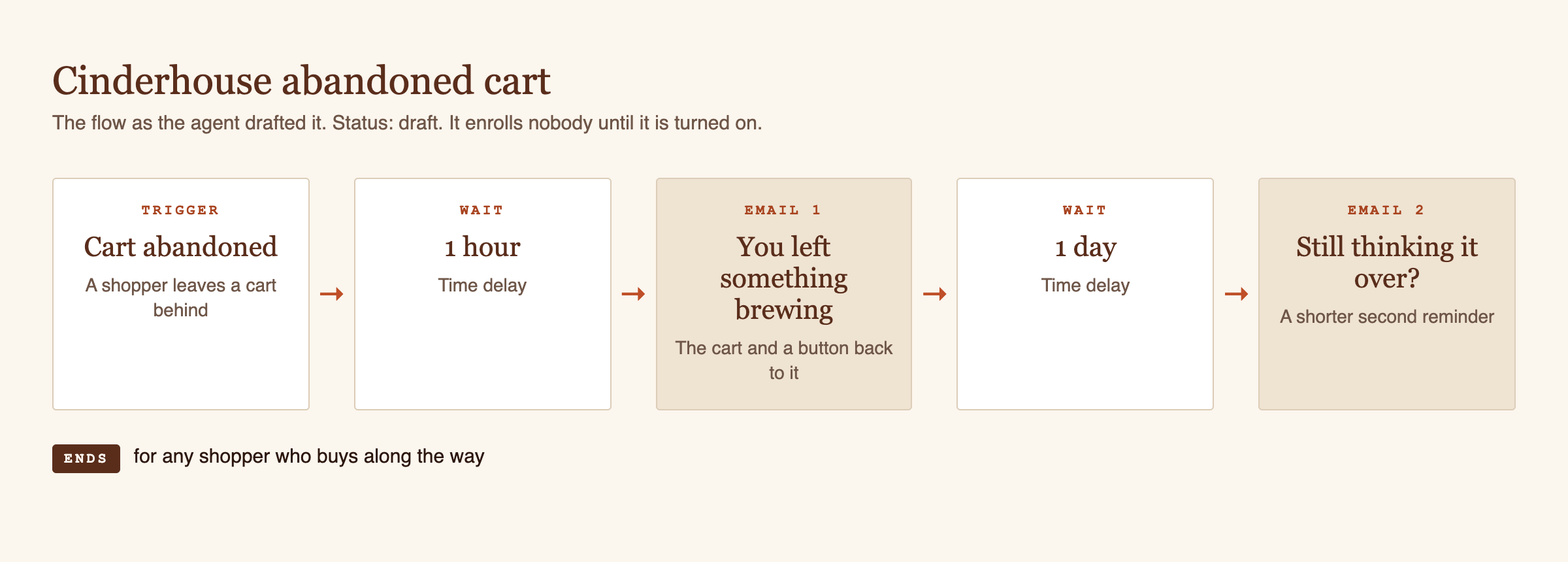
Steps: wait 1 hour, email 1, wait 1 day, email 2. Show me the steps as a chart when they are in.

The emails
Email 1: subject "You left something brewing", preview text "Your cart is saved. Pick up where you left off." A short hello, one or two warm sentences, the items left in the cart, and one button back to the cart.
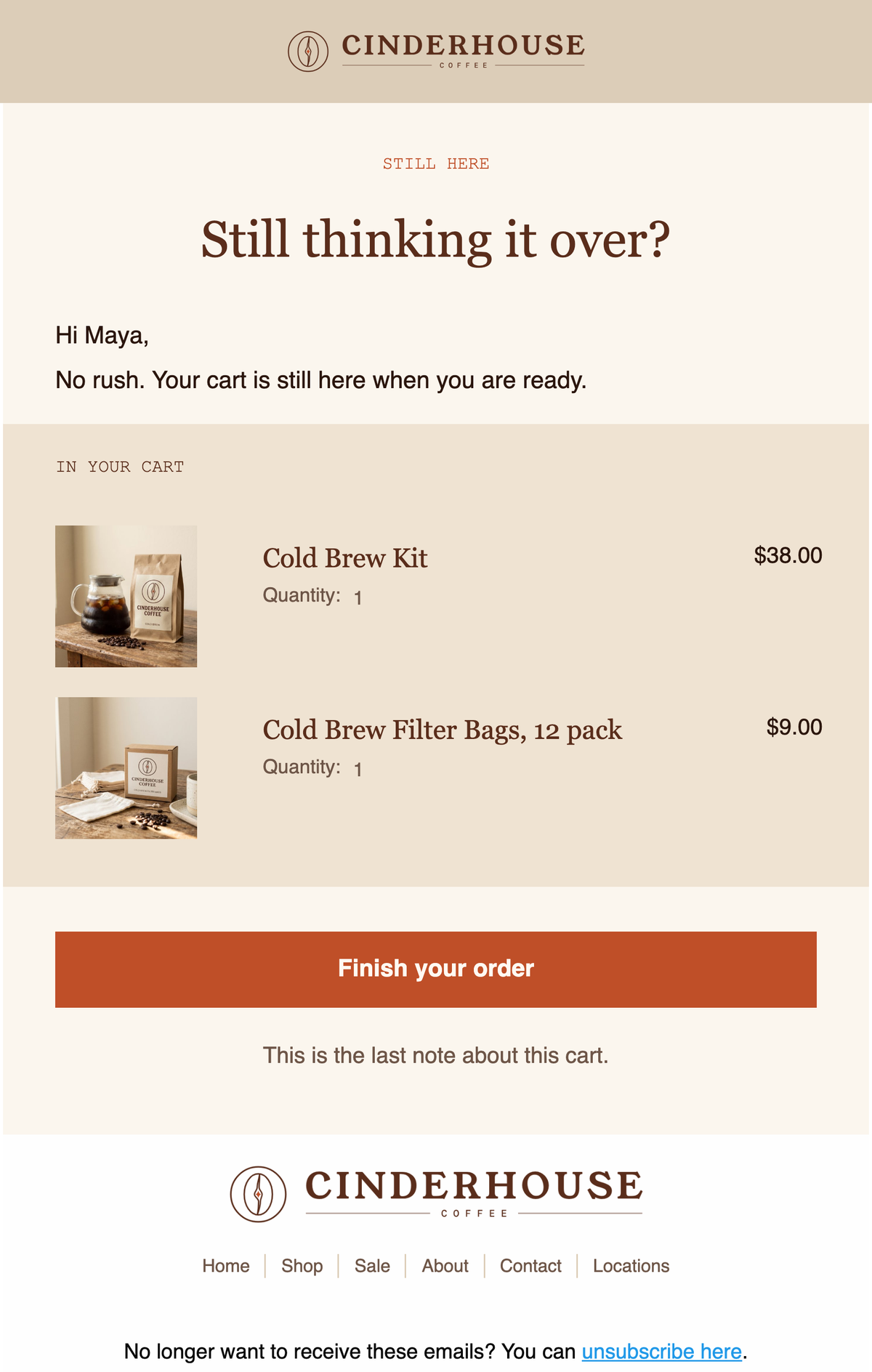
Email 2: subject "Still thinking it over?", preview text "Your cart is still here when you are ready." Shorter. The cart again and the same button.
Voice and colors are in kit/brand.md: warm, plain, short sentences, cream and espresso, one ember button. Use my logo. No coupon, no discount, no countdown, no "only 2 left".
Keep the unsubscribe link and the mailing address in the footer.

How to finish
Render each email at 600 and 375 wide and show me the pictures. Rendering sends nothing. Tell me about any warning the render gives.
Do not send a test email. A test is a real email. If I ask for one later, tell me which address it goes to first.
Do not ask for the content review, and do not turn the flow on, until I say so. Turning it on emails every shopper who abandons a cart from then on.
Tell me what I have to set up in the admin myself before the flow can send.
What the agent does
You watch, answer questions and look at pictures. Cinderhouse's agent:
- Read the sending settings and the list of flows.
- Created the flow as a draft that ends for anyone who buys.
- Added the steps: a one hour wait, the first email, a one day wait and the second email.
- Wrote both emails in the brand's voice, with the shopper's cart and one button.
- Previewed each email at desktop and phone width and fixed what was off.
- Saved the emails into the draft and stopped.
The cart in each email is the shopper's own. The photo, name and price of every item come from your catalog, so nothing is typed.
Technical details
Each email step is created with its subject and preview text and no body. The agent builds the body as a local file from native email elements (26 operations for each email here), then saves it. The steps as the agent read them back, and the save:
uc-storefront sf comms sequences get <sequence> --storefront 184481 --mermaid

flowchart TD
  s1(["Begin"])
  s2["Time Delay: 1 hour"]
  s3["Send Email: You left something brewing"]
  s4["Time Delay: 1 day"]
  s5["Send Email: Still thinking it over?"]
  s6(("End"))

uc-storefront sf containers push email-1.cjson --storefront 184481 --owner-type email --owner-id <email> --create --comment "Tutorial 4: abandoned cart email 1 body"

Created email/<email>; 5901 bytes
WARNING UltraCart's email or postcard editor can overwrite this change if someone has it open. Ask them to close it without saving and reopen it.
The cart rows use the emailcheckoutitemlist element, which repeats one row for each item in the cart, with itemimage, itemtitle and itemprice inside it. The button uses the Checkout action, which rendered as a return to cart link.
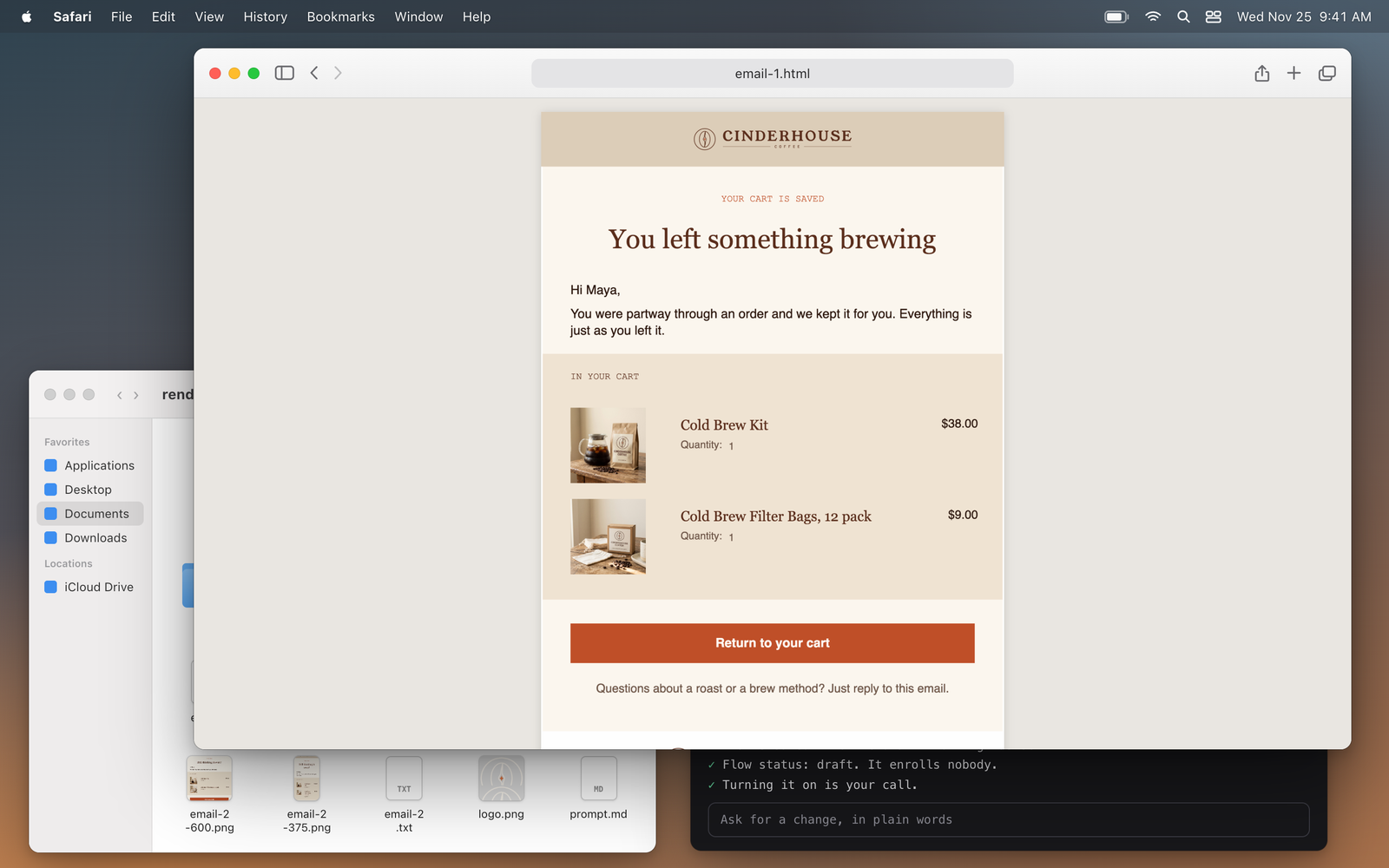
Check the email previews
Your agent renders each email the way a mail app would show it and hands you the pictures. Nothing is sent. Read them the way a shopper would:
- The subject and preview text, because that is all the inbox shows.
- The greeting, which uses the shopper's first name.
- The cart, with real items, photos and prices.
- One clear button back to the cart.
- The footer, with the unsubscribe link and your mailing address.
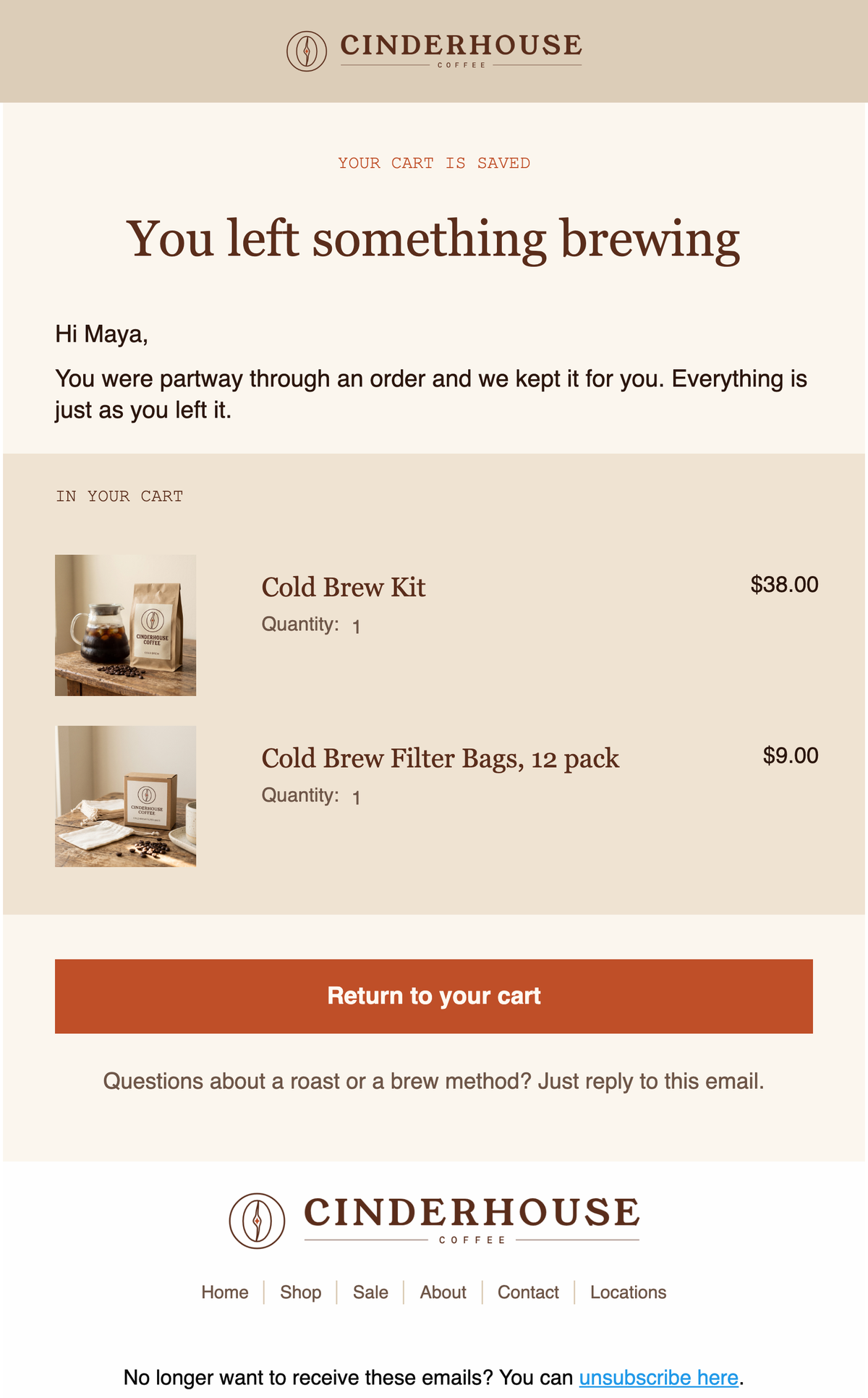
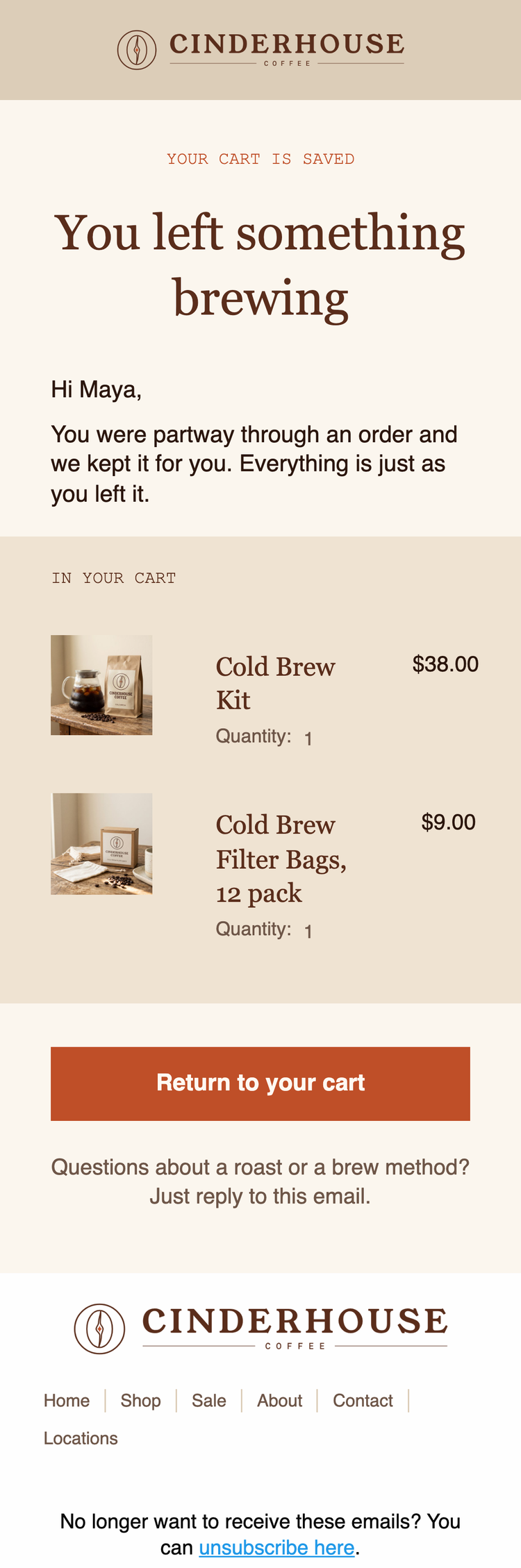
Ask for changes in plain words, such as "Make the second email shorter." For Cinderhouse, the first phone preview ran a few pixels past the edge of the screen. The preview said so, and the agent tightened the cart row until it fit.
Technical details
The render uses your theme's email template, fills in the name and a sample cart, and writes the HTML, the plain text and a picture at each width. The help for the command says it renders "as a test send would" and sends nothing. Cinderhouse's theme template added the logo header and the footer with the store menu, the unsubscribe line and the mailing address, so the agent left those out of the email bodies.
uc-storefront sf comms emails render <email> --storefront 184481 --draft email-1.cjson --cart-item CH-COLDBREW --cart-item CH-FILTERS --out renders --png --viewport 600,375 --customer-name "Maya Ortiz"

  "png_warnings": [
    "The email is 384 pixels wide in a 375-pixel window, so a reader at that width scrolls it sideways."

(after the fix)

  "subject": "You left something brewing",
  "preview_text": "Your cart is saved. Pick up where you left off.",
  "warnings": [],
  "png_warnings": [],
Settings that are yours
Your agent builds the flow. A few settings around it are set by you in UltraCart, and your agent can tell you which ones to look at.
- Proactive Email Collection. Turn it on for the email field in your checkout. It saves the shopper's address as soon as they leave the field, so there is someone to write to if they leave.
- Abandon Interval. This is how long a cart sits before UltraCart treats it as abandoned. It starts at 1 hour.
- Your from address. Check the default sender your marketing email goes out under.
Technical details
Proactive Email Collection is the Input Proactive Collection setting on the checkout email element in the Visual Builder. The docs page on proactive email collection has the steps. Without it, an abandoned cart flow has no address to send to.
Abandon Interval is under Configuration, Checkout, Abandon Interval, from 1 to 672 hours. The Abandon Interval page explains how to choose a value.
The default marketing sender is in your storefront's Communications settings. Your agent reads it with sf comms settings get. Changing it through the agent needs your approval in the admin.
Turn the flow on
When the emails look right, tell your agent:
The emails look right. Tell me exactly who the flow will email once it is on, and wait for my OK before you turn it on.Your agent shows you the change, from draft to active, and stops. When you say go, it turns the flow on. From then on, every shopper who abandons a cart gets the emails, and the flow ends for anyone who buys.
Cinderhouse stopped here. Its flow is still a draft, so this tutorial sent no email to anyone. If you change your mind later, say "Turn the flow off," and no new shoppers are enrolled.
Technical details
The dry run shows the change and what the real command still needs. Without --live the command is refused with a sentence saying why.
uc-storefront sf comms flows activate <flow> --storefront 184481 --dry-run

  "changed": {
    "status": {
      "before": "draft",
      "after": "active"
    }
  },
  "would_need": [
    "--live"
  ],
  "Dry run: nothing was written.",

uc-storefront sf comms flows activate <flow> --storefront 184481

error: Turning a flow on or off changes which customers receive its emails. Pass --live to acknowledge it.
Turning a flow on is refused until it has steps, every email has a subject, preview text and body, and every email has passed content review where one is required. If an email needs a review, the agent requests it and the ruling comes to you. Cinderhouse's two emails did not need one. Turning a flow off is sf comms flows deactivate, also with --live.
Live versus preview
- Preview only: every picture of an email. Nothing is sent.
- Saved, but off: the draft flow, its steps and its emails. Nobody is enrolled.
- Real, and only to you: a test send, which goes to a user on your account.
- Live: turning the flow on. It emails every shopper who abandons a cart from then on.
- Left alone: your other flows, campaigns, lists, pages and theme.
Your agent will not fire destructive actions without your consent. The safety and approvals page lists each one.
Abandoned cart email tips
- Keep it a draft until you have read every email. A draft costs nothing to leave alone.
- Ask for the phone width every time. Cinderhouse's desktop preview was clean and the phone one was not.
- Check the header and footer too. Your theme's email template adds them around every email.
- Close the email in the admin first. An email left open in the UltraCart editor can overwrite what your agent saves.
- Fix the checkout as well. A reminder helps, and so does a smoother checkout. See our checkout first playbook for cart abandonment.
Troubleshooting
- Every command stops with a location message: you are on a new network. Say, "Run the location approval," and approve it yourself with your authenticator.
- The flow will not turn on: your agent lists what is missing, such as an email with no body. Say, "Fix what is missing and show me the previews again."
- The flow is on and nothing arrives: check that Proactive Email Collection is on for your checkout email field.
- An email looks wrong on your phone: say, "Show me the phone preview and fix what runs past the edge."
- You want the old version of an email back: say, "Restore the previous version of that email."
Technical details
A flow that is not ready is refused with flow_not_ready and a list of what is missing. To see why a step sent, skipped or ended each customer, the agent reads sf comms sequences dispatch-logs. Email bodies keep versions, so sf containers versions and sf containers revert roll one back. A revert cannot recall an email that was already delivered.
Abandoned cart email FAQ
What is an abandoned cart email flow?
A short series of emails sent to a shopper who left items in their cart, with a link back to it.
Do I need to be technical?
No. You paste a prompt, look at a picture of each email and say when the flow turns on.
Does building the flow send any email?
No. The flow is a draft that enrolls nobody, and a preview is only a picture.
Who gets the emails once the flow is on?
Every shopper who abandons a cart from then on, as long as your checkout collected their email address.
Can I send myself a test first?
Yes. A test is a real email to a user on your UltraCart account, so your agent asks you first.
Can my agent turn the flow off again?
Yes. Say "Turn the flow off," and no new shoppers are enrolled.
How long does it take?
Cinderhouse's took about 5 minutes from the agent's first command to both emails saved in the draft.
Next in the series, your agent sets up the lists and segments that feed a flow. Meanwhile, see how an agent built a landing page from a design comp, or explore the StoreFront Agent Toolchain.