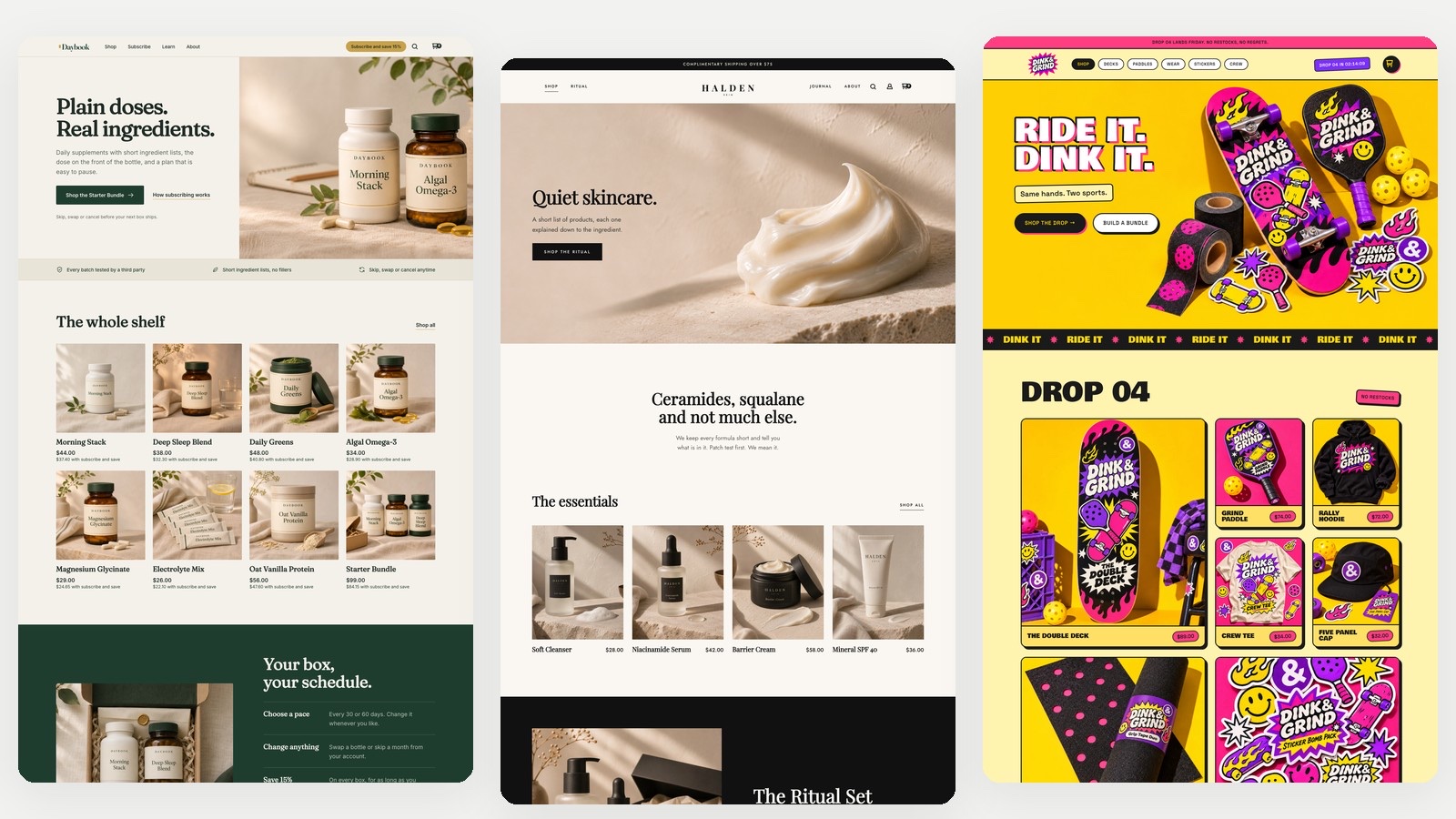


Want your agent to do this with you? Send this article to your own AI agent and say, "Walk me through this tutorial." You approve the sign-in yourself, and your agent handles the rest.
Set up your store at a glance
You make a folder, paste one prompt, approve one sign-in and ask your agent a first question. You do not need to be technical. Each section has a Technical details box with the commands, versions and sign-in internals. Open it if you are curious, and skip it if you are not.
- Make a folder on your computer for your store.
- Install the toolchain by pasting one prompt into your agent.
- Connect your store with one approval in your browser.
- Read your storefronts by asking your agent a first question.
We use Cinderhouse Coffee, a small-batch roaster, on a test storefront. Your store takes the same steps.
Technical details
The whole path in commands, for anyone who wants it:
npm install -g @ultracart/storefront-cli@beta
uc-storefront init --target claude --no-input
uc-storefront profile create cinderhouse
uc-storefront auth login --profile cinderhouse
uc-storefront profile bind cinderhouse --merchant-id T1000
uc-storefront sf storefronts
What you need
- An AI agent you already use, such as Claude Code, Codex, Cursor, GitHub Copilot or Hermes.
- An UltraCart account with a StoreFront. Start on a test storefront if you have one. A developer account works for testing.
- A place for your agent to build. That depends on where you are starting, below.
Already selling? Keep your live store exactly as it is and give your agent its own space. In the admin, duplicate your current theme so you have an inactive copy to build and preview on, or open a second storefront to test on.
Starting fresh? Add the free Skeleton theme and go. Our Skeleton theme article shows where to get it. Cinderhouse is built on Skeleton: we installed it and made an inactive copy to build on, so each change can be previewed first.
Technical details
Duplicating a theme and adding a storefront are done in the UltraCart admin, under Themes and StoreFronts. An extra storefront can change your plan, so check your pricing first. Your agent can also duplicate a theme for you once it is connected.
The toolchain needs Node.js 24 or newer with npm. Check with node -v. Your agent checks this for you in the next step and asks before it installs anything. If you would rather do it yourself, get the current version from nodejs.org.
Make your local folder
Your agent does its work from one folder on your computer. Think of it as the agent's desk. Your brand files, design comps, product photos and notes live there, and your agent reads them each time it works. You can drop files into the folder yourself, or just give them to your agent and it keeps them organized there for you. The folder also keeps everything in one place, so you always know where its work lives.
Making it takes a minute:
- Mac: open Finder, go to Documents and choose File, then New Folder. Windows: open File Explorer, go to Documents, right-click an empty spot and choose New, then Folder.
- Name it for your store. We used
cinderhouse-store. - Open the folder in your agent so it uses the folder as its context. In a code editor, open the folder. In a terminal,
cdinto it and start your agent there.
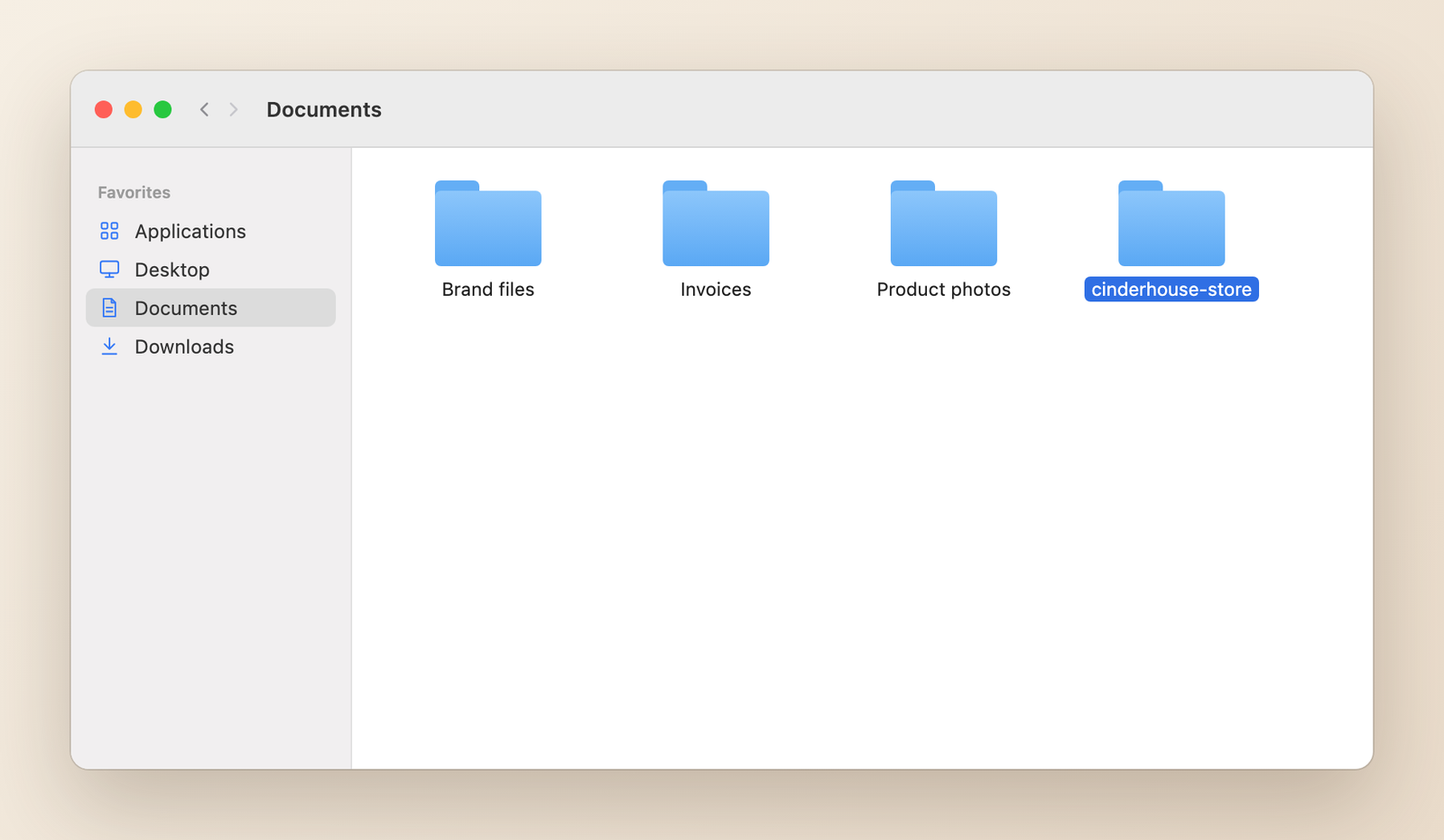
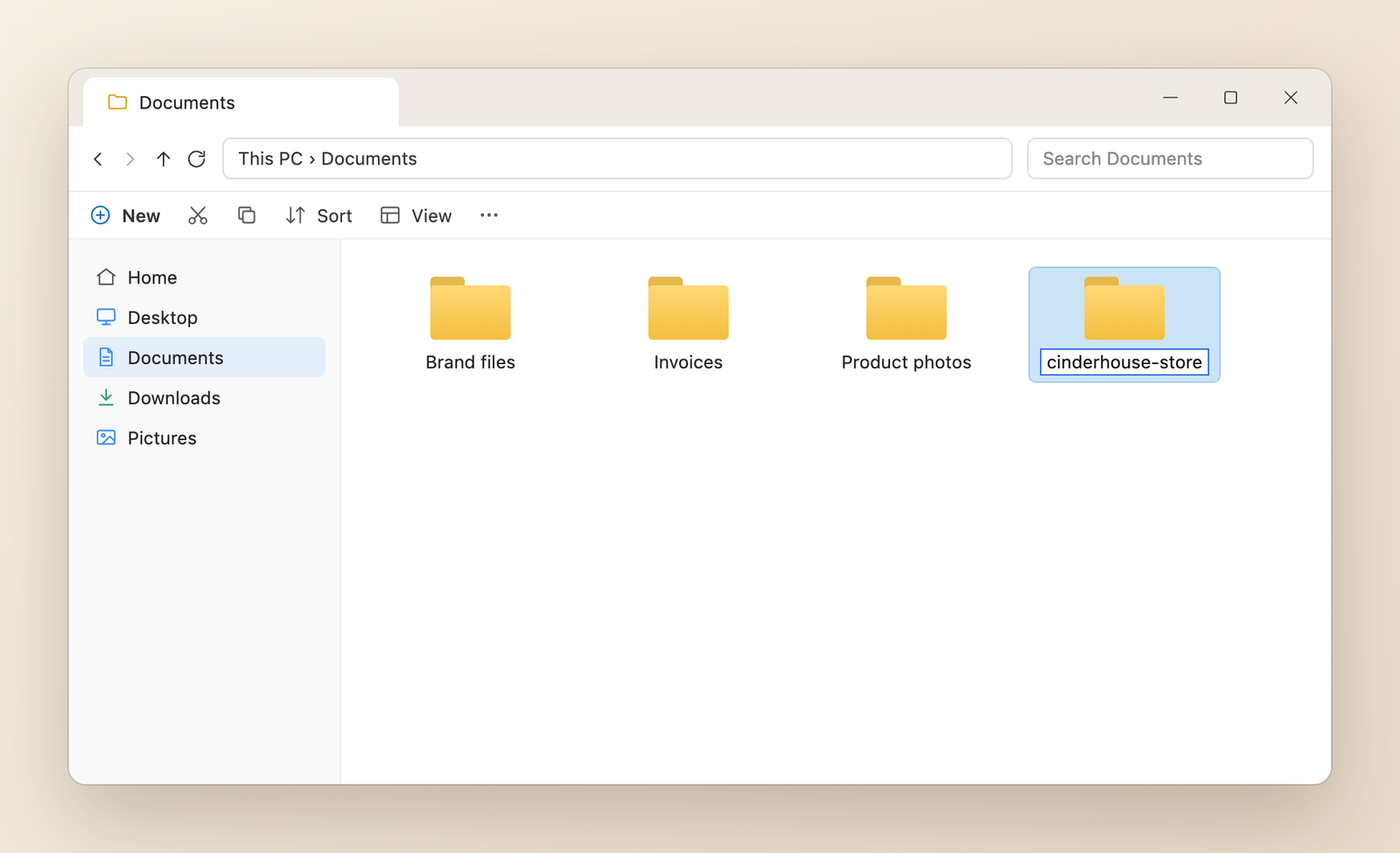
Use one folder for each UltraCart account. If you run several stores in one account, one folder covers them all.
Want to follow along with Cinderhouse? Download the Cinderhouse starter kit (zip, 7 MB) and unzip it into your folder. It holds the design comps, logo, product photos, brand notes and a starter prompt that the rest of the tutorials use.
Technical details
Prefer a terminal? Make the folder, move into it and start your agent there. This is Claude Code on a Mac or Linux. On Windows PowerShell use mkdir ~\Documents\cinderhouse-store and cd into it.
mkdir ~/Documents/cinderhouse-store
cd ~/Documents/cinderhouse-store
claude
Install the toolchain
The StoreFront Agent Toolchain gives your agent a safe way into your store. You do not install it yourself. With the folder open in your agent, paste in this prompt:
Read https://www.ultracart.com/theme/assets/storefront-agent-toolchain.txt. The UltraCart StoreFront CLI is in public beta. Follow the brief to install it and set it up for me in this folder, and ask before you install anything or sign in.Your agent reads the setup brief, asks before it installs anything and gets the folder ready. The toolchain is free. You pay only for your own AI agent.
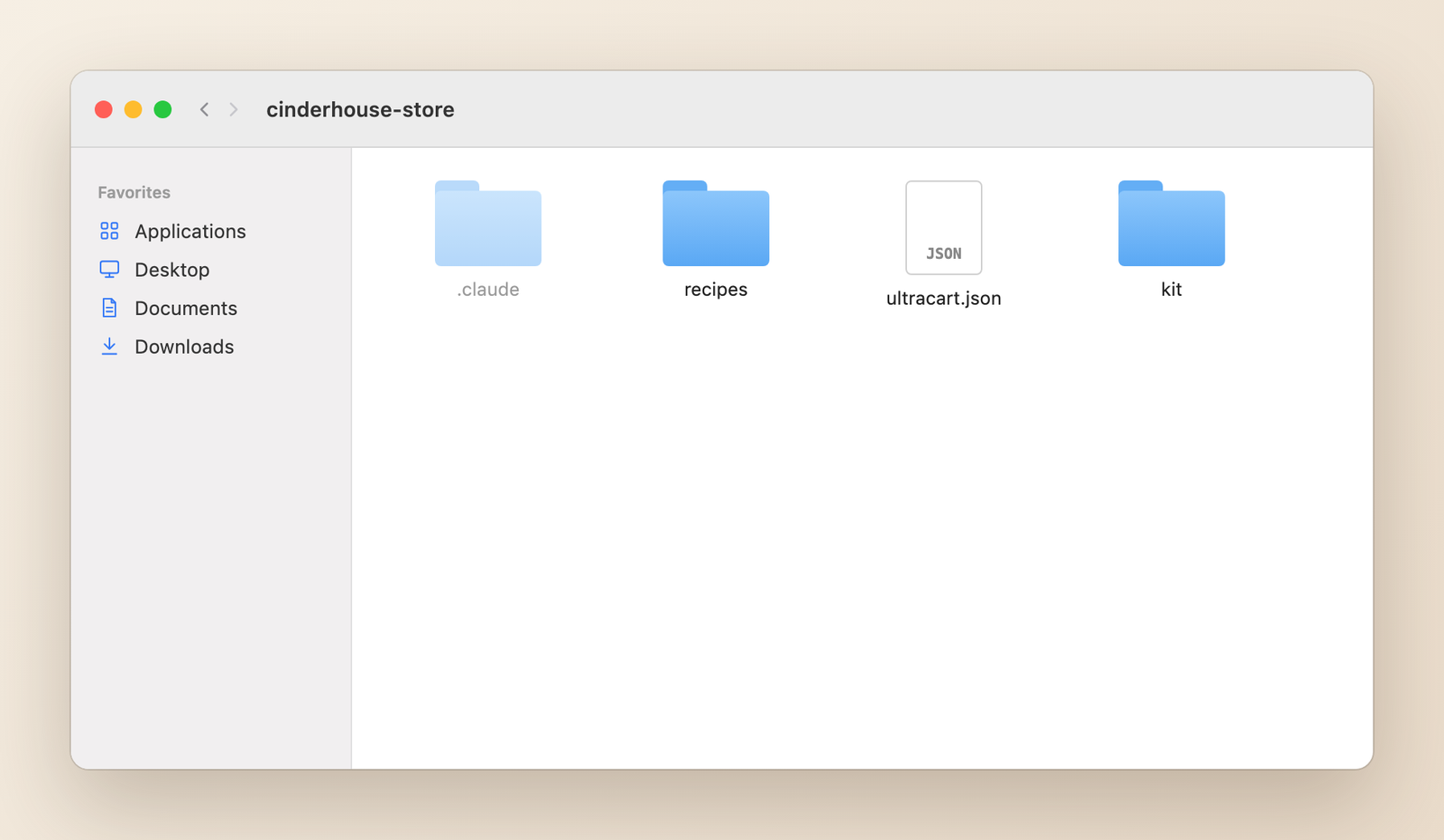
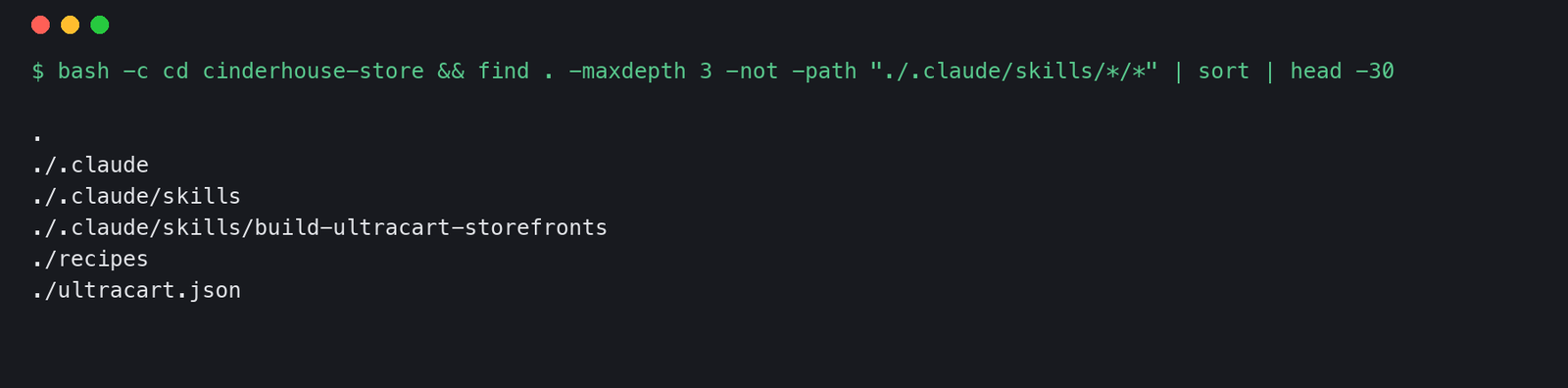
When it finishes, your folder holds an ultracart.json file, a recipes folder and a hidden folder with the skill that teaches your agent how to work on a StoreFront. Your agent is ready the moment it opens the folder.
Technical details
The brief runs these commands. init writes the skill where your agent looks for it: --target claude for Claude Code, --target codex for Codex, Cursor or GitHub Copilot, --target gemini for Google Antigravity and --target hermes for Hermes.
npm install -g @ultracart/storefront-cli@beta
uc-storefront --version
uc-storefront init --target claude --no-input
uc-storefront skills status
If npm cannot find the package, add --@ultracart:registry=https://registry.npmjs.org/ to the install command. The install and set up page explains why. The skill is named build-ultracart-storefronts and lives in .claude/skills for Claude Code or .agents/skills for the others.
Connect your store
Connecting is one approval in your browser. Paste this into your agent:
Create a profile called cinderhouse, sign me in to it and bind this folder to merchant T1000. Give me the web address and code, and wait while I approve.Your agent hands you a web address and a short code. Then:
- Check your merchant ID. Make sure the UltraCart account you are signed in to has the merchant ID you mean to connect.
- Open the address your agent gave you and sign in the way you always do.
- Check the code, accept the StoreFront CLI terms the first time and approve.
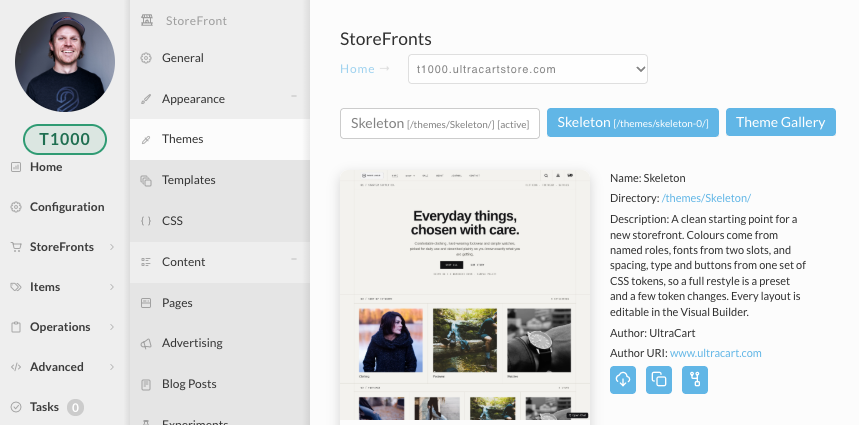
You never type a password or key into the chat. The approval signs in whichever store your browser is on, which is why step one matters. Your agent can also tell you which store it is signed in to.
If you approved the wrong store, nothing is lost. The tool refuses it and keeps nothing. Tell your agent: "Remove the cinderhouse profile and sign me in again." Switch your browser to the right store first, then approve.
Technical details
Behind the prompt, your agent runs the sign-in in two steps, then binds the folder to your merchant ID. Binding ties the folder to a profile and a merchant, not to one storefront.
uc-storefront profile create cinderhouse
uc-storefront auth login --profile cinderhouse --no-wait
uc-storefront auth login --continue --wait --profile cinderhouse
uc-storefront profile bind cinderhouse --merchant-id T1000
uc-storefront profile show
To see which store you are signed in to, run uc-storefront auth status --profile cinderhouse and read the merchant: line. If you approved the wrong one, the sign-in ends with this message and nothing is stored:
error: authenticated merchant 'T1000' does not match expected merchant 'UC' for profile 'cinderhouse'. The token it issued was revoked, and nothing was stored.Remove the profile, then create it and sign in again on the right store:
uc-storefront profile remove cinderhouse
uc-storefront profile create cinderhouse
uc-storefront auth login --profile cinderhouse
Your sign-in lives in your computer's secure credential store, never in the folder. From a new network address, UltraCart asks once for approval with your authenticator app. The approved addresses page has the details.

Run your first read
Now ask your agent a first question that only reads:
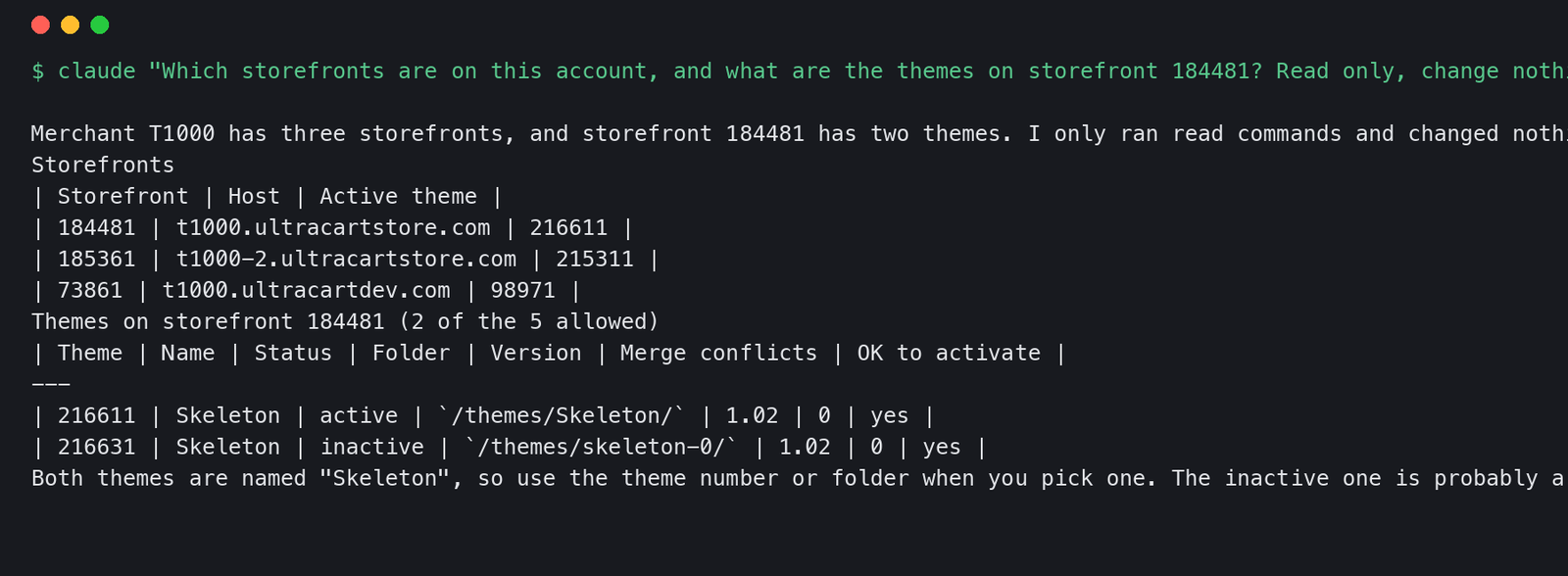
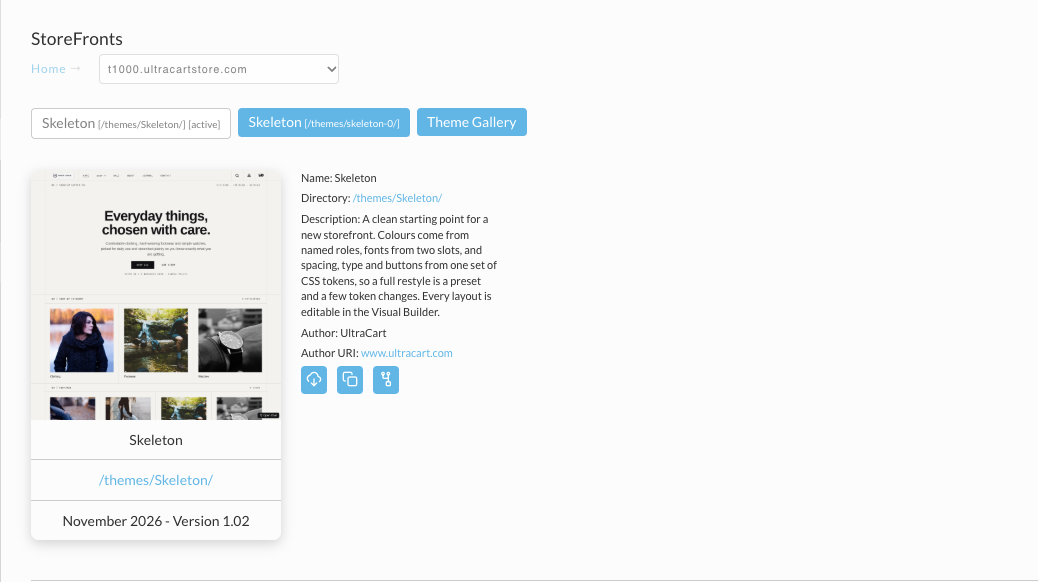
This folder is connected to my UltraCart merchant account. Read your build-ultracart-storefronts skill, then list my storefronts and tell me which one is t1000.ultracartstore.com. List its themes and tell me which is active and which is the inactive working copy. Only read. Change nothing.Our test account has three storefronts, and Cinderhouse lives on 184481. Your agent should come back with that ID and two Skeleton themes: the active one shoppers see, and the inactive copy, a sandbox your agent builds in until you flip it to active. If it does, you are ready to build.
Technical details
Behind the reply, your agent runs two read commands. Each storefront row is an ID, an address and the active theme. The output here is trimmed to the Cinderhouse row.
uc-storefront sf storefronts

184481	t1000.ultracartstore.com	active theme 216611
uc-storefront sf themes --storefront 184481
themes for storefront 184481: 2 of 5
216611 Skeleton active /themes/Skeleton/ version 1.02 merge conflicts: 0 ok to activate: yes
216631 Skeleton inactive /themes/skeleton-0/ version 1.02 merge conflicts: 0 ok to activate: yesYou choose the storefront on each command with --storefront, and --theme 216631 points at the working copy. That is how one folder serves every storefront in your account.
Live versus preview
Everything in this tutorial only reads, so nothing on your storefront changes. When you start building, keep this in mind:
- Preview first: theme changes on an inactive copy, pages, checkout, emails and blog drafts can be previewed with a private link before anyone sees them.
- Live at once: item content, store menus, redirects and site settings are shared by every theme, so a change reaches shoppers as soon as it is written.
Your agent will not fire destructive actions without your consent, and you give that consent in the UltraCart admin. The safety and approvals page lists each one.
Troubleshooting
- Your agent cannot find the toolchain: close your agent, open it again in the same folder and ask again.
- Your sign-in expired: tell your agent, "Sign me in again with the cinderhouse profile."
- You signed in to the wrong store: remove the profile and sign in again, as above.
- The tool says your account is refused: check you approved on the right store, then email support@ultracart.com with your Merchant ID.
Technical details
For a missing command, open a new terminal and check node -v shows 24 or newer. To sign in again, run uc-storefront auth login --profile cinderhouse. The refusal is beta_access_required. uc-storefront auth status shows when your sign-in expires.
Setup FAQ
How do I set up my ecommerce store for an AI agent?
Make a folder on your computer, paste the install prompt into your agent, approve one sign-in in your browser and ask your agent to list your storefronts.
Do I need to be technical?
No. You make a folder, paste prompts and approve one sign-in. The commands are in the Technical details boxes if you want them.
Why make a local folder?
The folder is your agent's desk. It holds your brand files, comps, photos and notes, you can add to it at any time, and it keeps everything organized in one place.
Which AI agents work with it?
Claude Code, Codex, Cursor, GitHub Copilot, Hermes and Google Antigravity all work. Setup puts the skill where your agent looks for it.
Does the agent see my password?
No. You sign in yourself in your browser, and the sign-in is kept in your computer's secure credential store, not in the folder.
Can the toolchain create my storefront or install a theme?
No. You create the storefront and install or duplicate a theme in the UltraCart admin, then your agent works on them from the folder.
Does it cost anything?
No. The toolchain is free. You pay only for your own AI agent with its provider.
With the folder connected, you are ready to build. Next, give your agent a design comp and a brand kit and have it customize a theme, or read how bringing your own AI agent works across your store.