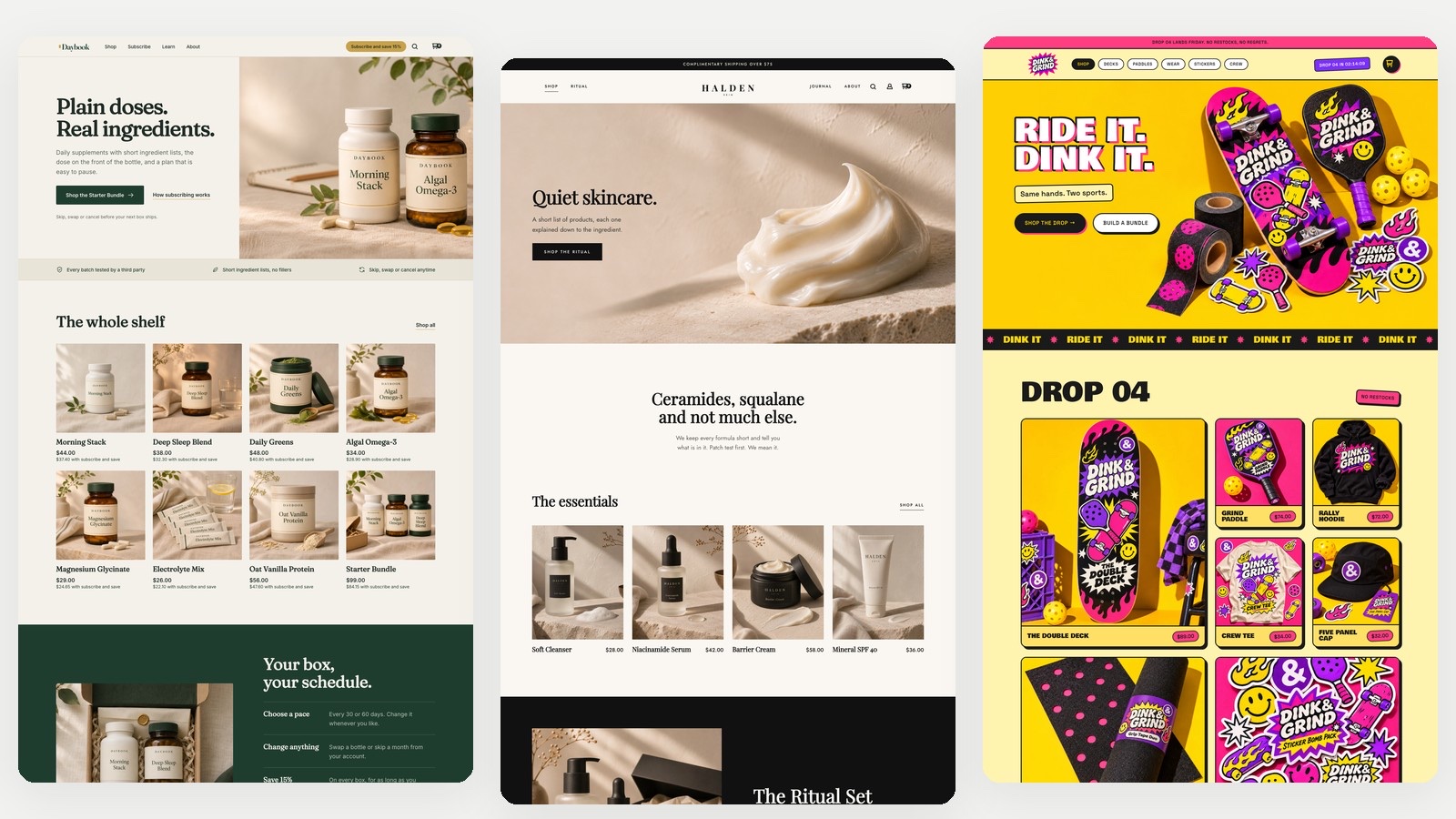


Want your agent to do this with you? Send this article to your own AI agent and say, "Walk me through this tutorial." You check the preview and activate the theme yourself, and your agent handles the build.
Your mega menu at a glance
Your agent builds an ecommerce mega menu inside your ecommerce header, and you check a preview before anything goes live. Each section has a Technical details box for anyone who wants the commands.
- Give your agent the design comp.
- Paste the prompt into your agent.
- Check the preview against the comp.
- Activate the theme in the UltraCart admin.
For Cinderhouse Coffee, it took 16 minutes from the agent's first command to the saved header.
Technical details
The path in commands, on storefront 184481 and the inactive theme 216631 (/themes/skeleton-0/):
uc-storefront sf themes --storefront 184481
uc-storefront sf theme-attributes set --storefront 184481 --theme 216631 --file theme-palette.json
uc-storefront sf files upload <photo> --storefront 184481 --to /themes/skeleton-0/theme/assets/imgs/cinderhouse/<photo>
uc-storefront sf pull /themes/skeleton-0/theme/containers/header.cjson --storefront 184481 --out header.cjson
uc-storefront sf ids --count 300
uc-storefront cjson apply header.cjson --plan 01-header-rebuild.json
uc-storefront sf preview start --storefront 184481
uc-storefront sf push header.cjson --storefront 184481 --dry-run --allow-removals
uc-storefront sf push header.cjson --storefront 184481 --allow-removals
What you need
- Your store folder from tutorial 1, where you set up your store for an AI agent.
- A design comp of the header. A desktop picture is enough to start.
- An inactive theme to build on.
Already selling? Keep your live header as it is. Duplicate your current theme in the admin and build on the inactive copy.
Starting fresh? Add the free Skeleton starter theme and duplicate it, so your agent builds on an inactive copy. That is how we built Cinderhouse.
Technical details
Your agent can list your themes and say which is inactive. It can also duplicate one with sf themes duplicate, which always makes an inactive copy.
uc-storefront sf themes --storefront 184481

themes for storefront 184481: 2 of 5
216611	Skeleton	active	/themes/Skeleton/	version 1.02	merge conflicts: 0	ok to activate: yes
216631	Skeleton	inactive	/themes/skeleton-0/	version 1.02	merge conflicts: 0	ok to activate: yes
Give your agent the comp
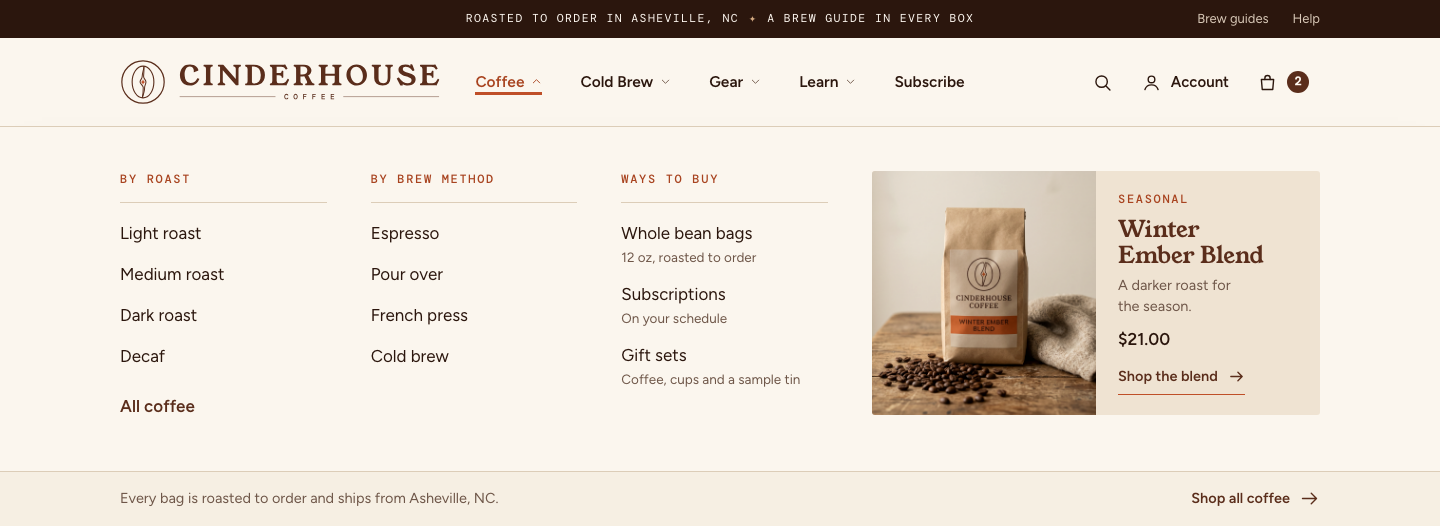
A comp is a picture of the finished design. It shows your agent exactly where the logo sits, what each panel holds and how the phone menu behaves, so it can measure its work against yours instead of guessing.
You can hand it over either way:
- Give it straight to your agent. Attach the picture to your message, the same way you would share any image.
- Or drop it in your store folder, the folder your agent works from, so it can find it again later. Your brand notes, colors, fonts and product photos can live there too.
Start with the desktop comp. For the phone menu, give your agent a phone comp as well, or ask it to build the mobile version from the desktop design and give it feedback as it goes.
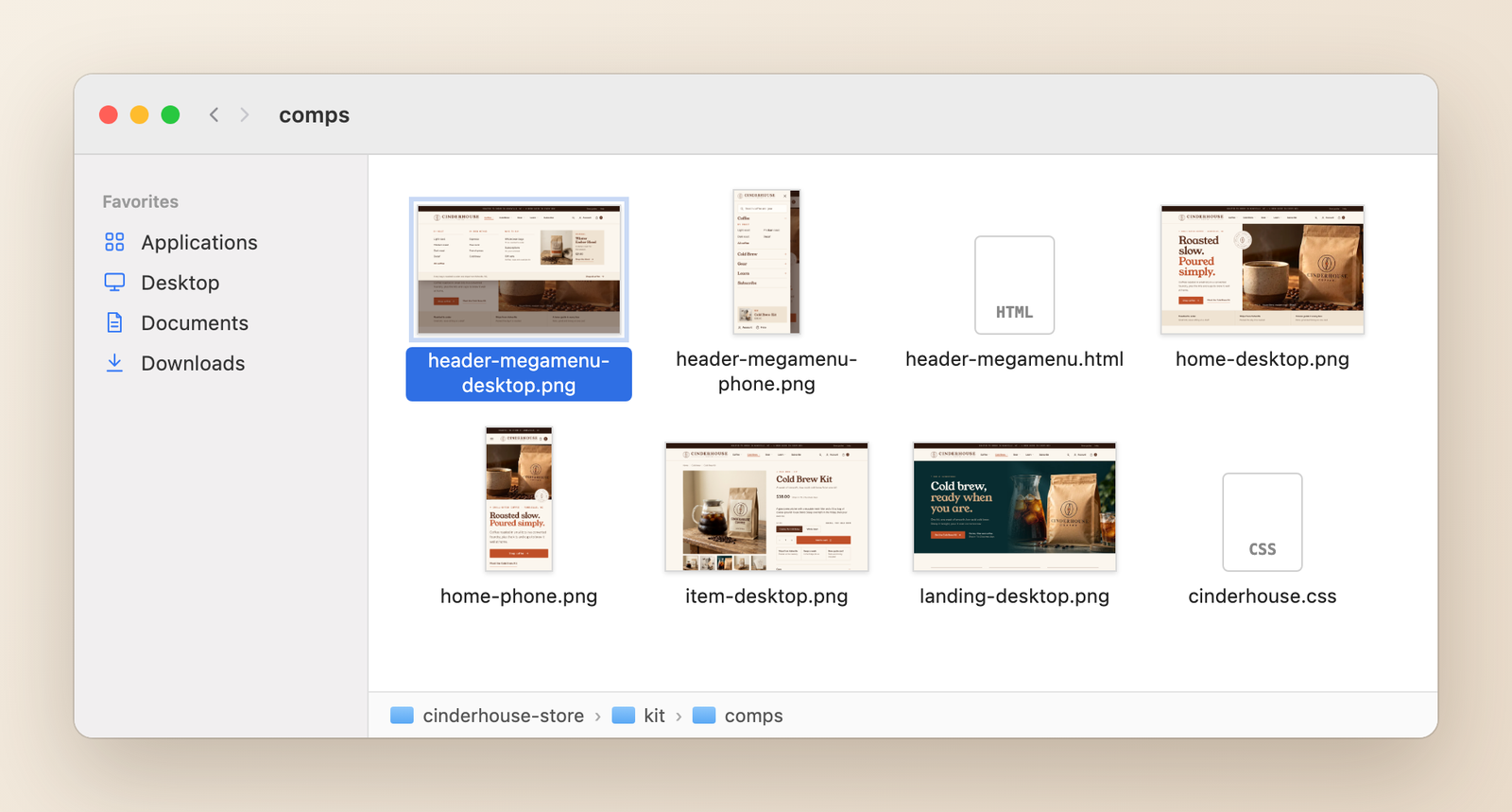
Following along with Cinderhouse? Download the Cinderhouse starter kit (zip, 7 MB), unzip it into your store folder and rename the new folder kit. The comps sit in kit/comps beside the brand notes, colors and product photos.

Technical details
The Cinderhouse kit. Your agent reads whatever the prompt points at.
kit/
  brand.md               palette, type and shape rules
  theme-palette.json     colors and fonts for the theme
  comps/
    header-megamenu.html
    header-megamenu-desktop.png
    header-megamenu-phone.png
  images/new/            product photos
In the starter kit download, the comp pictures are JPEG files with the same names.
The mega menu prompt
Paste this into your agent from your store folder.
The comp for my new header is in kit/comps, and my brand notes, colors and fonts are in kit. Rebuild my store's header and mega menu to match the comp, on my inactive theme copy. Apply my colors and fonts there first. Keep the cart that is there now, and remove anything the comp doesn't show. Featured products must come from my real catalog. Show me a preview at desktop and phone width, and the dry run, before you save the header. Don't touch menus, site settings or anything live, and don't activate the theme.If you attached the comp instead, start with "Here is the comp for my new header." No phone comp? Ask your agent to build the phone menu from the desktop design. If you have no colors file, delete the sentence about colors and fonts. A good reply confirms the theme, names anything missing from your catalog and starts with your colors.
You can say much more if you like. The Cinderhouse prompt in the Technical details box below names the storefront and theme numbers, describes each panel and picks the featured products.
Technical details
The full Cinderhouse prompt, as pasted for this build. Change the storefront and theme numbers, file names and links to yours.
Redesign my store's header to match the comp in kit/comps/header-megamenu.html. The pictures are header-megamenu-desktop.png and header-megamenu-phone.png. Use the uc-storefront command line tool and its skill, and show me a preview at desktop and phone width before you save anything.

Where to work
My storefront is 184481. Work only on the theme called skeleton-0 (theme 216631, folder /themes/skeleton-0/). It is my working copy and shoppers do not see it. Never write to the active theme, and never use --live on a theme file.
First, apply my colors and fonts from kit/theme-palette.json to theme 216631. Read them back afterwards and show me.
Pull a fresh copy of header.cjson before you change it. Show me the dry run before every push.
Menus, site settings, items and pages are shared and go live at once, so leave them alone. Build the navigation inside the header itself.

What the header should look like
A thin espresso bar across the top: "Roasted to order in Asheville, NC", then "A brew guide in every box" on desktop only, and Brew guides and Help links on the right.
A cream header under it: my logo on the left, the menu in the middle, and search, account and the cart with its count on the right. Keep the cart that is there now.
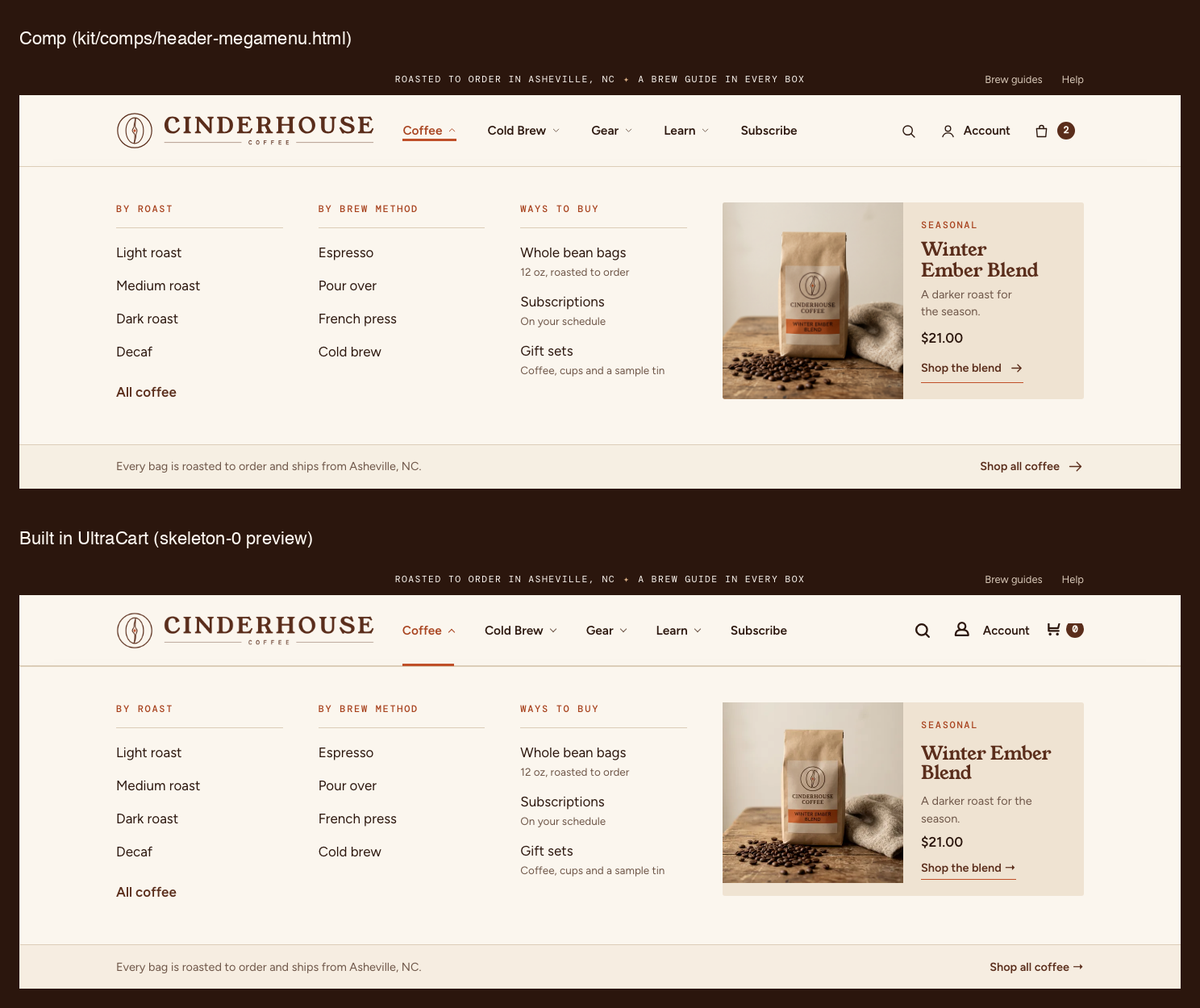
The menu: Coffee, Cold Brew, Gear and Learn each open a panel the full width of the page. Each panel has three columns of links under small headings with a thin rule, one featured product card on the right, and a strip along the bottom with one sentence and a "shop all" link. Subscribe is a plain link. Take the link names from the comp.
Featured products must come from my real catalog: the name, price and link from the item itself. I would like Winter Ember Blend under Coffee, the Cold Brew Kit under Cold Brew, the Stoneware Mug under Gear and the Brew Guide Card Set under Learn. If one of those is not in my catalog yet, use the closest item I do have and tell me which.
My items do not have photos attached yet. Upload the product photos you need from kit/images/new/ into the working theme, and tell me each file and where it went.
Most links in the comp are categories I have not made. Point them at my Cinderhouse catalog page, /shop/cinderhouse/, or at an existing page that fits (About, Blog, Contact, Help), and give me the list of what still needs a real page. Do not create pages.
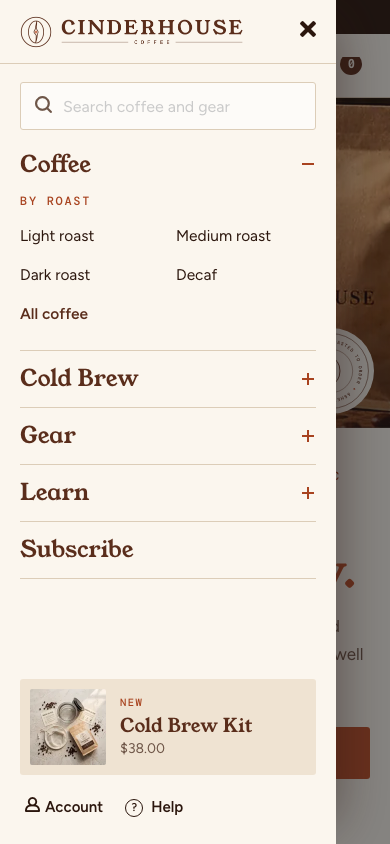
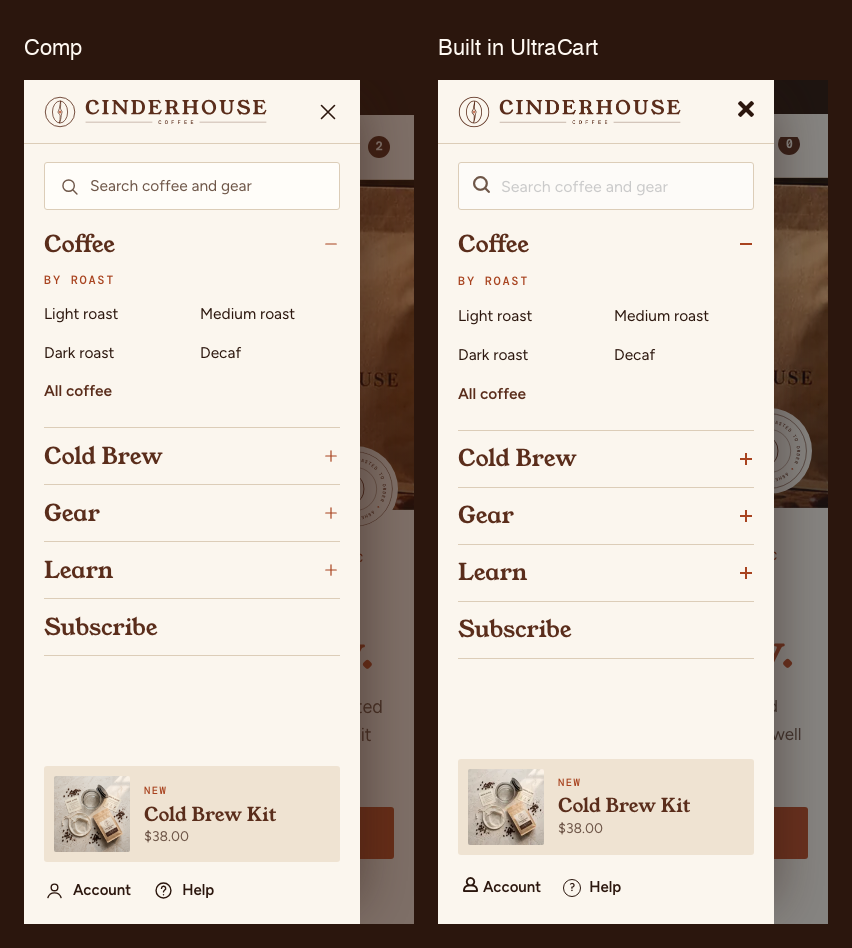
On phones: a Menu button on the left, the logo in the middle, the cart on the right. The button opens a drawer from the left with a search box, the same departments as an accordion, one small featured product, and Account and Help at the bottom.
Shape and color rules from kit/brand.md: 3 px corners, no pills, no shadows except under the open mega menu, cream and oat backgrounds, brown headlines, ember only for the active department.

How to finish
Compare the preview with the comp, fix what differs, and tell me plainly what still does not match.
You may remove the old menu widgets from the header if the new ones replace them. List every widget you remove and show me the dry run first.
Save the header to skeleton-0 when it is close. Do not activate the theme or publish anything; I will do that in the admin.
A store menu is shared by every theme and goes live when written, so it cannot be tried on an inactive theme. A header is a theme container, so a mega menu built inside it can be previewed first. See the menus, search and site settings page.
What the agent does
You watch, answer questions and look at previews. Cinderhouse's agent:
- Checked the target and found all four featured items in the catalog.
- Applied the colors and fonts, after saving the old ones.
- Used each item's own photo on its featured card.
- Built the header in one pass: top bar, logo, four department panels and the phone drawer.
- Fixed what differed in two more rounds, previewing after each.
- Showed the dry run and saved the header to the inactive copy.
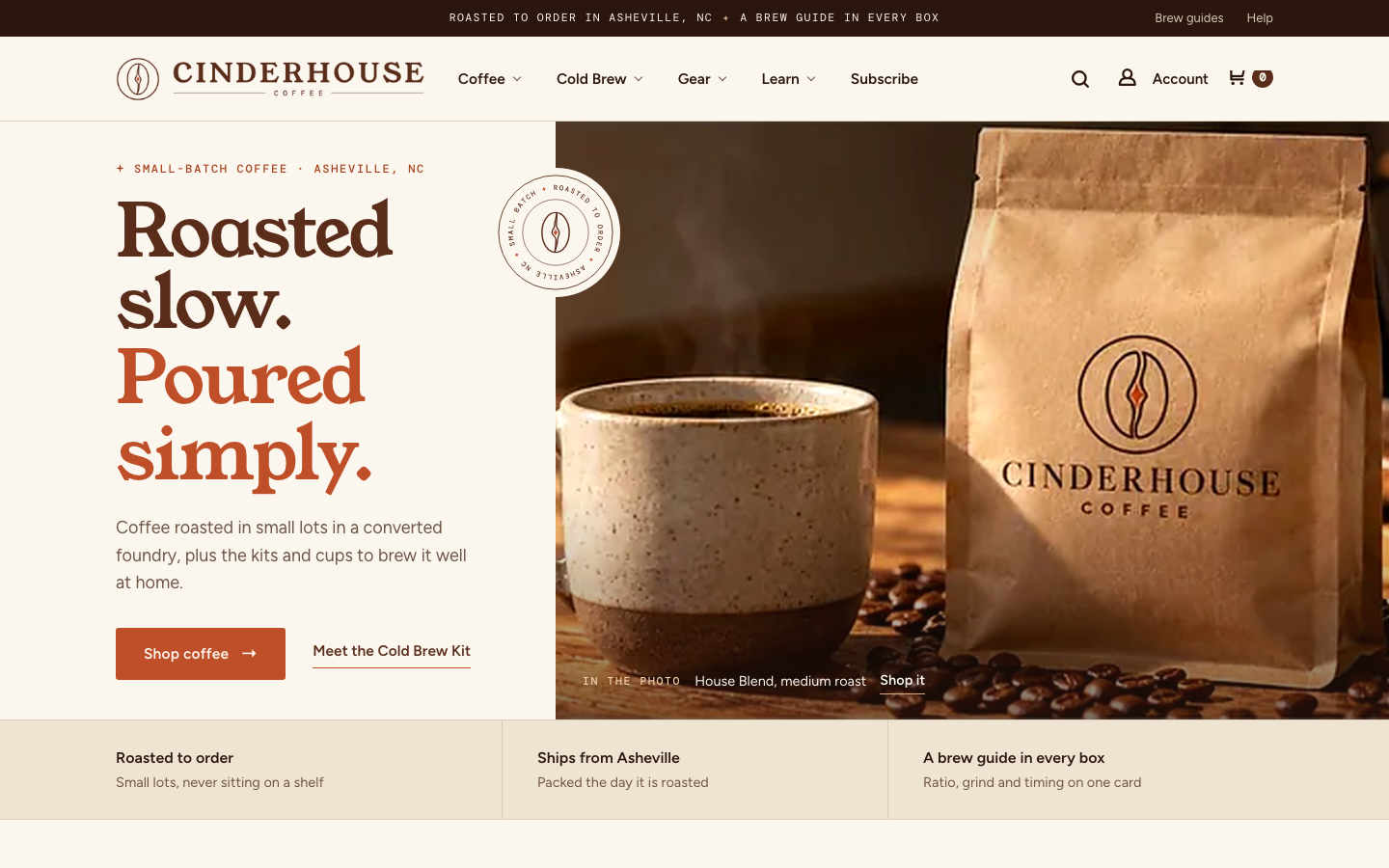
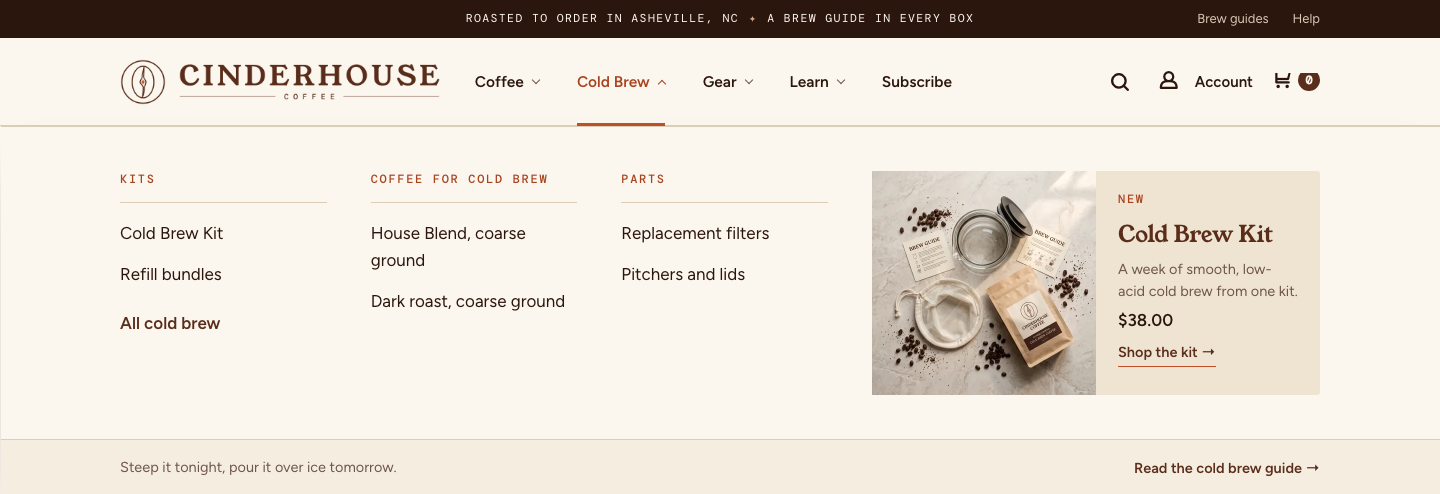
Each featured card reads its photo, name, price and link from the item itself.
Technical details
The agent pulls the header into a local file with a baseline, reserves real widget IDs, applies the build as one plan (162 operations in the first pass) and previews it. A push is refused if anyone saved the header since the pull. The local editing workflow covers each step. The final dry run, trimmed to the removed widgets:
uc-storefront sf push header.cjson --storefront 184481 --dry-run --allow-removals

Dry run: /themes/skeleton-0/theme/containers/header.cjson; would write; live=false
Delta: 143 added, 8 removed, 13 changed
  - menu-1614
  - wishlistsummary-8732
  - menu-1588
  - flex-5249932
  - flex-5249934
  - cartview-3565
  - flex-5252994
  - sociallinks-3660
Check the mega menu preview
Your agent opens a private preview of your real storefront with the new header in place. Look at it the way a shopper would:
- On desktop, open each department and check the links and featured card.
- On a phone, tap Menu, open each department and close the drawer.
- Click a featured product and check it lands on the right item.
Ask for changes in plain words, such as "Move the cart count beside the cart." Then put the comp and the preview side by side. Your agent tells you plainly what still differs. For Cinderhouse, that was the cart icon and the links that still need category pages.
Technical details
Each preview link works once and expires after two minutes. The comparison was made at 1440 pixels wide and 390 on a phone.
uc-storefront sf preview start --storefront 184481
uc-storefront sf preview stage --storefront 184481 --session <session> --theme 216631 --file header.cjson=/themes/skeleton-0/theme/containers/header.cjson
uc-storefront sf preview open --storefront 184481 --theme 216631 --path / --session <session>
uc-storefront sf preview end --storefront 184481 --session <session>
Activate the new header
Activating is your step, in the UltraCart admin, and it makes the theme live at once. Scroll the whole page in the preview first, not only the header, and ask your agent to fix anything that looks off before you activate.
- Go to Main Menu, StoreFronts, choose your StoreFront and select Themes under Appearance.
- Select the tab for your working theme.
- Click Activate beside the theme image and confirm.
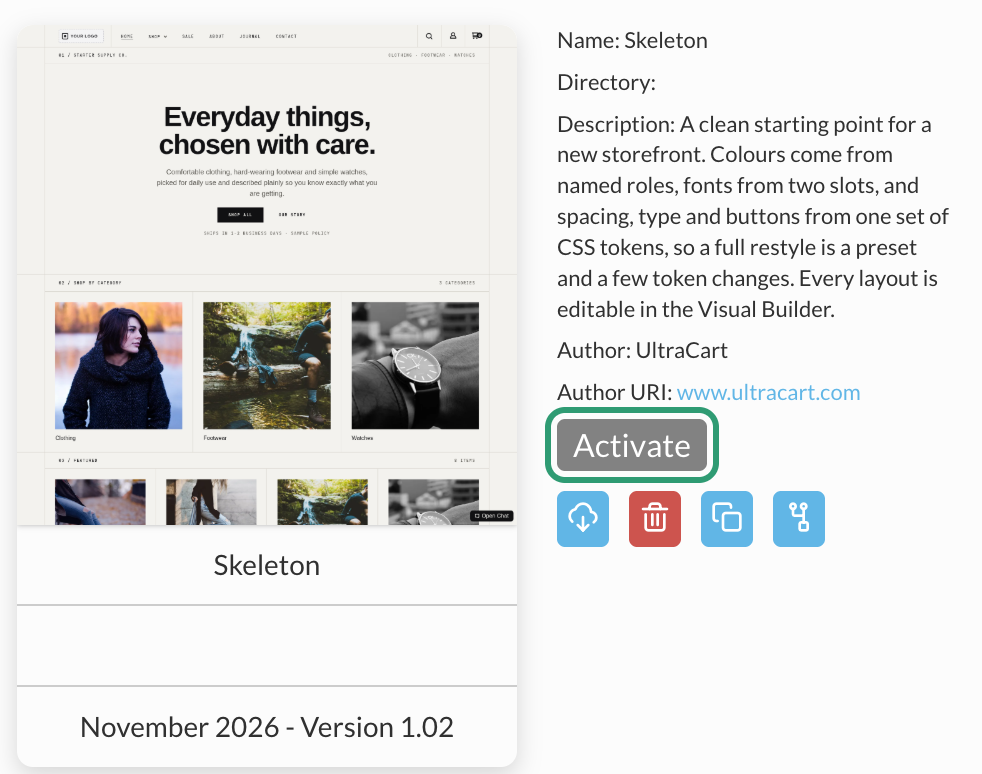
The Themes guide shows each screen.
Technical details
Every push saves a new version, so your agent can roll the header back:
uc-storefront sf files versions /themes/skeleton-0/theme/containers/header.cjson --storefront 184481
uc-storefront sf files revert /themes/skeleton-0/theme/containers/header.cjson --storefront 184481 --file-version 2
Live versus preview
- Preview first: the header, colors and fonts all went to the inactive theme.
- Live at once: store menus, site settings, items and pages are shared by every theme, so the prompt leaves them alone.
Your agent will not fire destructive actions without your consent. The safety and approvals page lists each one.
Mega menu tips
- Attach item photos when you can. Then your agent can use each item's own picture on the cards.
- Read the whole change list. The dry run names every widget added, changed and removed. That is how the agent caught a spacing change it made to the cart drawer and put it back.
- Removals are listed before the save. You ask your agent to remove anything the comp doesn't show, and the dry run names each widget it would remove, eight for Cinderhouse, before anything is saved.
- After a palette change, look at the whole page. On Skeleton, Theme Color 01 is the page text and Theme Color 02 is the page background, so put your brand accents in Theme Color 04 and up.
- A bad color file changes nothing. It is refused with the setting named and the right format shown.
- Reload the Visual Builder after a save. An older open copy can overwrite the new header, which stays editable there, as the pages and themes page explains.
Technical details
The color file refusal, from Cinderhouse's first try:
error: Attribute Input Font is a font. Pass a font object, for example Input Font={"families":[{"family":"Montserrat","type":"google"}],"weight":"700"}; parts you leave out keep their current setting.Colors and fonts have no dry run, so the agent saves sf theme-attributes get --format json to a file first as the undo. Removing widgets needs --allow-removals. Item links in a header use itemLinkCanonical: Yes so they open the item's page under its catalog.
Troubleshooting
- The preview link will not open: it works once. Say, "Give me a fresh preview link."
- The save is refused: someone saved the header elsewhere. Say, "Pull the header again and redo the change on top."
- A card or link is wrong: name it and say what it should show or open.
- You want the old header back: say, "Restore the previous version of the header."
Technical details
A changed header is refused with version_conflict and nothing is written. Without --allow-removals, the dry run says "would be refused". After sf files revert, pull again before the next edit.
Mega menu FAQ
What is an ecommerce mega menu?
A header menu where each department opens a wide panel of grouped links, often with a featured product.
Do I need to be technical?
No. You add a comp, paste a prompt, check a preview and activate in the admin.
Will shoppers see the header while it is built?
No. It is built on an inactive theme and shown only in your private preview until you activate it.
Why not edit the store menu instead?
Store menus are shared by every theme and go live when changed. Building inside the header keeps the redesign on the inactive theme.
Can my agent activate the theme?
No. You activate a theme in the UltraCart admin.
How long does it take?
Cinderhouse's took 16 minutes from the agent's first command to the saved header.
Next in the series, your agent builds a promo landing page for the Cinderhouse Cold Brew Kit. Meanwhile, see how we customized one theme for three brands with AI, or explore the StoreFront Agent Toolchain.