

Want your agent to do this with you? If your AI agent isn't connected to your store yet, start with how to set up your store for an AI agent. It takes a few minutes. Then send this article to your agent and say, "Schedule my holiday banners like this." You pick the deals and the dates, and your agent builds and checks the banners.
A scheduled Black Friday banner turns on at midnight and turns off when the sale ends, with nobody at a keyboard. In UltraCart you build the banner ahead of time, put it inside a date and time condition, and the store shows it only while its window is open. Line up several in a row and your whole holiday weekend runs itself.
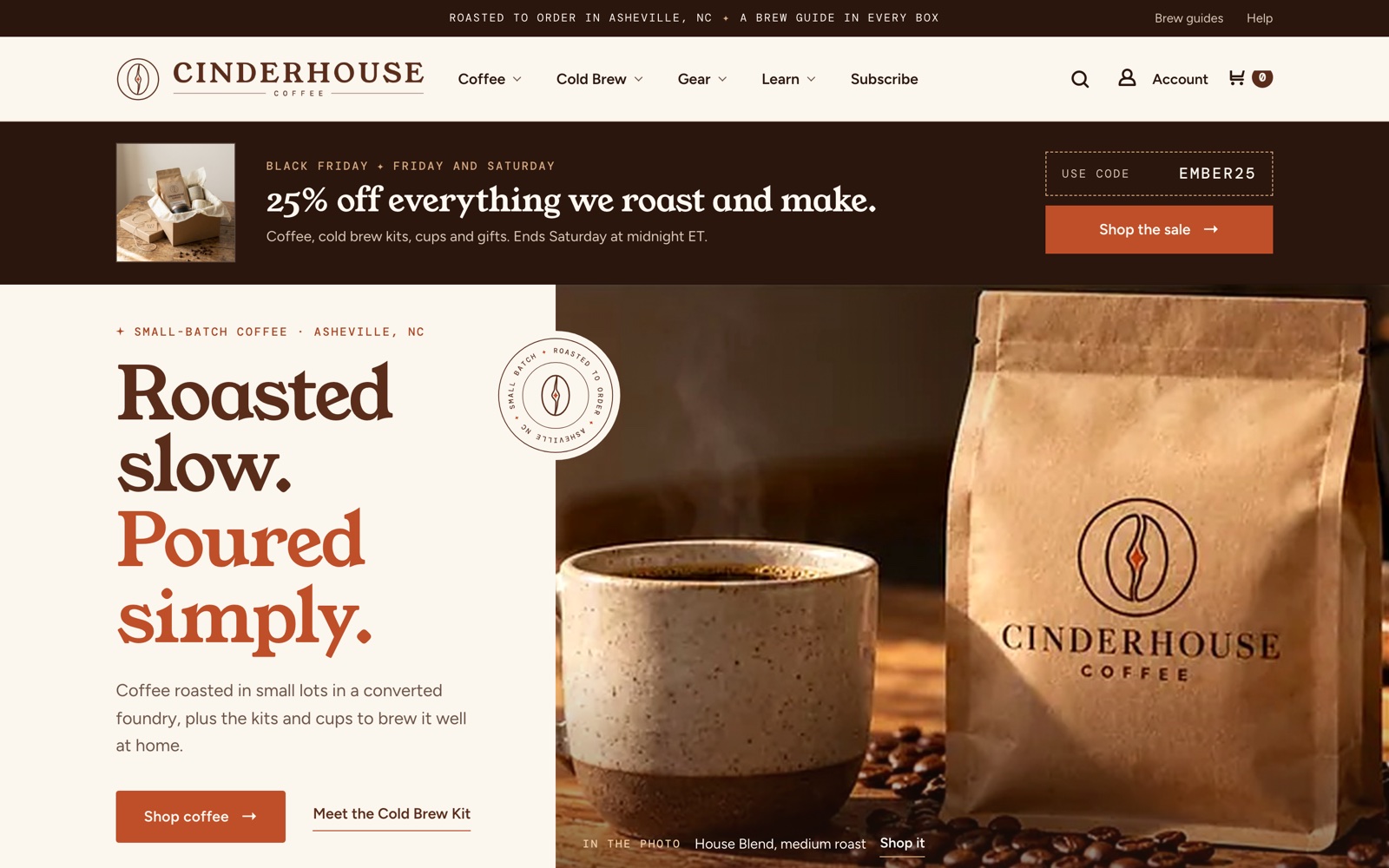
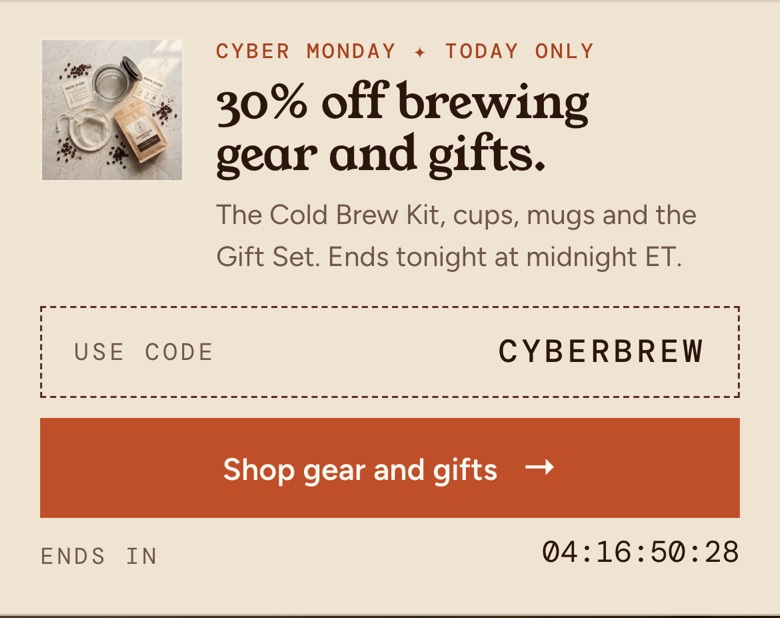
Here is the schedule our demo store, Cinderhouse Coffee, runs this year. Each banner has a different deal, and each deal has its own coupon on the same clock.
Friday 12:00 AM to Saturday 11:59 PM (Eastern time)
Black Friday
25% off everything
Code: EMBER25
Sunday, all day (Eastern time)
Cyber Sunday
Early access: 20% off every bag of coffee, with a countdown to Cyber Monday
Code: EARLYPOUR
Monday, all day (Eastern time)
Cyber Monday
30% off brewing gear and gifts, with a countdown to midnight
Code: CYBERBREW
How a scheduled banner works
A date and time condition is an invisible wrapper. Whatever you put inside it, a banner, a pop up or a whole section, shows only between its start and its end.
- It runs on the store's clock. The check happens when the page loads, so a shopper's computer clock or time zone changes nothing.
- Windows meet without a gap. The start is included and the end is not, so a banner that ends at midnight hands off to one that starts at midnight with no overlap and no empty minute.
- One group, one winner. Give the conditions the same group name and only one of them can show at a time, even if you set two windows to overlap by mistake.
- Nothing is deleted when the sale ends. An expired banner stays in the page, hidden. Next November you duplicate it and change the dates.
Build the banners
Design the banner the way you would any band on your site, then wrap it. In the Visual Builder:
- Build the banner where you want it to show. Cinderhouse put its banners in the header, right under the menu, so they appear on every page.
- Add a date and time condition from the logic elements and move the banner inside it.
- Set the window: a one time schedule, the start and end, and the time zone. Cinderhouse uses America/New_York.
- Name the group, such as
holiday-2026, and use the same name on every banner in the weekend. - Repeat for the next banner, starting exactly where the last one ends.
Or hand the whole job to your agent. Cinderhouse's prompt:
Add three holiday banners under the header of my store, on every page. Use my brand notes in kit for the look.
Black Friday: Friday 12 AM to Sunday 12 AM Eastern. 25% off everything, code EMBER25.
Cyber Sunday: Sunday 12 AM to Monday 12 AM. Early access, 20% off every bag of coffee, code EARLYPOUR, with a countdown to Cyber Monday.
Cyber Monday: Monday 12 AM to Tuesday 12 AM. 30% off brewing gear and gifts, code CYBERBREW, with a countdown to midnight.
Put each one in a date and time condition, all in one group. Show me each banner in a preview before you save, and confirm none of them shows today.
Technical details
Each banner is a datetimecondition holding a section, added to the header container after the sticky header bar. The Black Friday window, as saved:
"type": "datetimecondition",
"config": {
  "datetimeConditionTimeZone": "America/New_York",
  "datetimeConditionAbsoluteStartAt": "11/27/2026 00:00",
  "datetimeConditionAbsoluteStopAt": "11/29/2026 00:00",
  "datetimeConditionGroup": "cinderhouse-bfcm-2026"
}
Dates are MM/DD/YYYY HH:mm. A window the store can't read fails closed: the banner stays hidden rather than staying up forever. Before saving, the dry run read Delta: 42 added, 0 removed, 0 changed with conflict=false. The save landed as version 5 of the header, and the earlier version stays one command away if you need to roll back.
Give each banner its own coupon
A banner that promises a code the checkout refuses costs you the sale. Give every coupon the same start and end as its banner, so the code a shopper sees is always the code that works.
- EMBER25: 25% off the subtotal, Friday 12:00 AM to Sunday 12:00 AM.
- EARLYPOUR: 20% off the coffee items only, all day Sunday.
- CYBERBREW: 30% off the gear and gift items only, all day Monday.
Set the start and expiration on each coupon in your UltraCart account, and apply each code in a private browser window once its window opens.
Add a countdown
The two Cyber banners carry a small countdown beside the code. Sunday counts down to the start of Cyber Monday, and Monday counts down to the end of the sale. A countdown says the deal is real and ends soon, without shouting.
The countdown ticks in the shopper's browser, but the banner around it is still decided by the store's clock. When the countdown reaches zero, the next page load shows the next banner.
Check every banner before the weekend
You can't wait until midnight to find out a banner is wrong. Cinderhouse checked each one in a preview, which shows changes without saving them:
- Move one window to today in the preview only, and look at the banner at desktop and phone width.
- Do the same for the other two.
- Put the real dates back and confirm that today, before the sale, no banner shows.

Then save, and on the first morning of the sale open your store in a private window to see what shoppers see.
After the sale
Leave the banners where they are. They stay hidden once their windows pass, and next year you change six dates instead of building three banners. If your coupons also stay in your account, set next year's dates on them too.
Frequently asked questions
What time zone does a scheduled banner use?
The one you pick on the condition. If you leave it empty, the store's own time zone is used. UltraCart's admin runs on Eastern time, so Cinderhouse sets America/New_York to match its coupons.
Will two banners ever show at once?
Not when they share a group name. Only one condition in a group shows at a time, and a window's end is not included, so back to back windows never overlap.
Can I schedule a pop up instead of a banner?
Yes. A date and time condition can wrap any element, including a pop up, a whole section or a single line of text.
What happens to the banner after the sale ends?
It stays on the page, hidden. Duplicate it next year and change the dates.