
Beyond the theme settings
Most themes come with a short list of things you may change: a few colors, a font and a handful of sections. That works until your brand needs something the theme did not plan for, like a different menu, a hero that fills the screen or a product page with its own layout. Then you wait on a designer or pay a developer.
UltraCart StoreFront themes work differently. A theme is a set of plain files: named color roles, font slots and a template for each part of the store, from the header to checkout. Skeleton, our free starter theme, has 22 named color roles and more than fifty editable template files, and every one of them can be changed.
Browse the other free StoreFront themes if you want a different starting point. Skeleton makes a good base to customize an ecommerce theme with AI, because an agent can change the same files you or a developer would.
Three brands, one theme
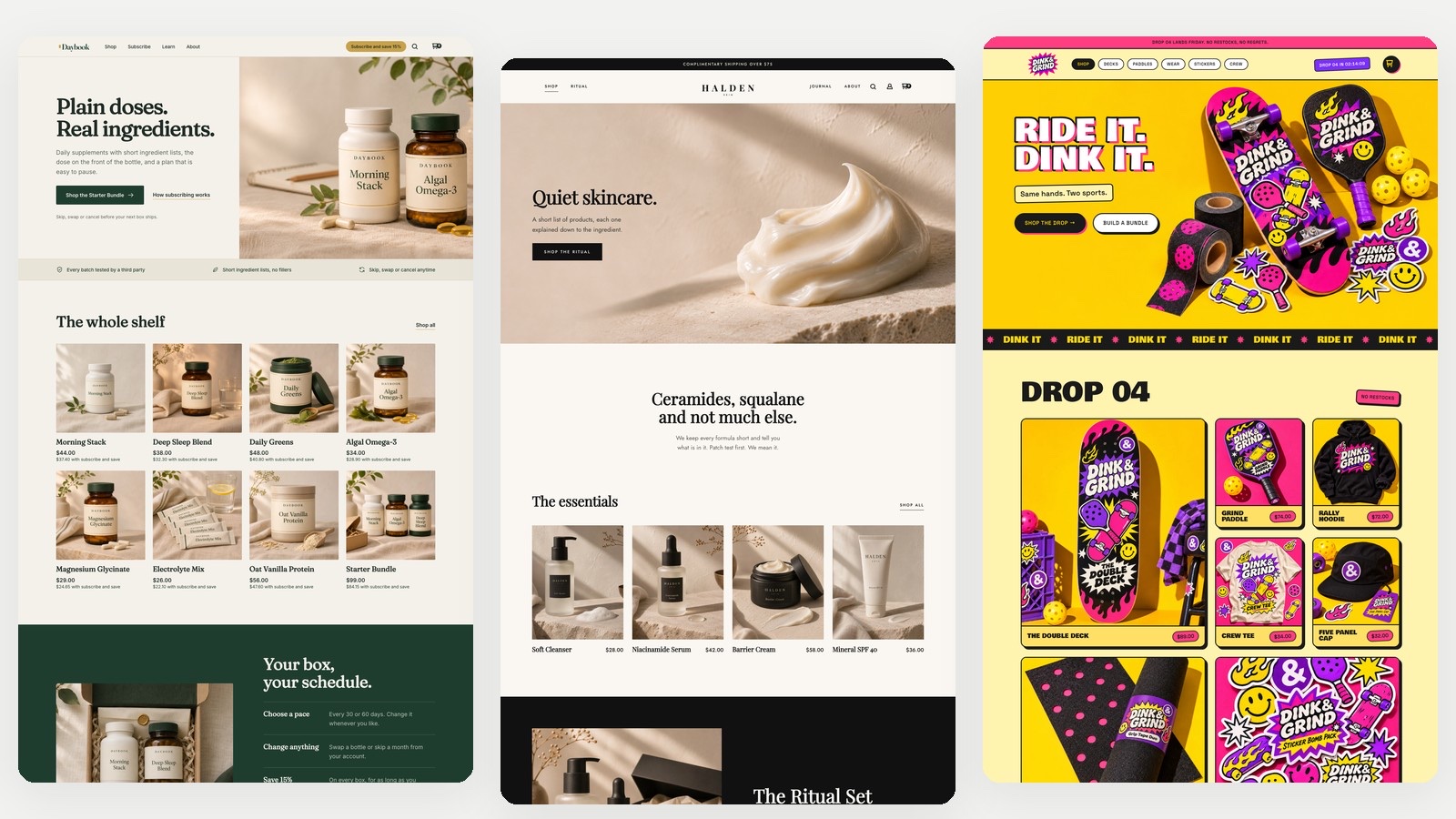
To see how far one theme stretches, we took three brands that look nothing alike. Each has a design comp (a picture of the finished pages), brand notes and a prompt.
- Daybook, supplements: calm and credible, with a split hero, a subscribe-and-save buy box and a Supplement Facts panel.
- Halden Skin, skincare: quiet and editorial, with a centered logo, tall serif type and a black gift-set band.
- Dink & Grind, skate and pickleball: loud and a little absurd, with a ticker strip, hard black borders and a drop countdown.
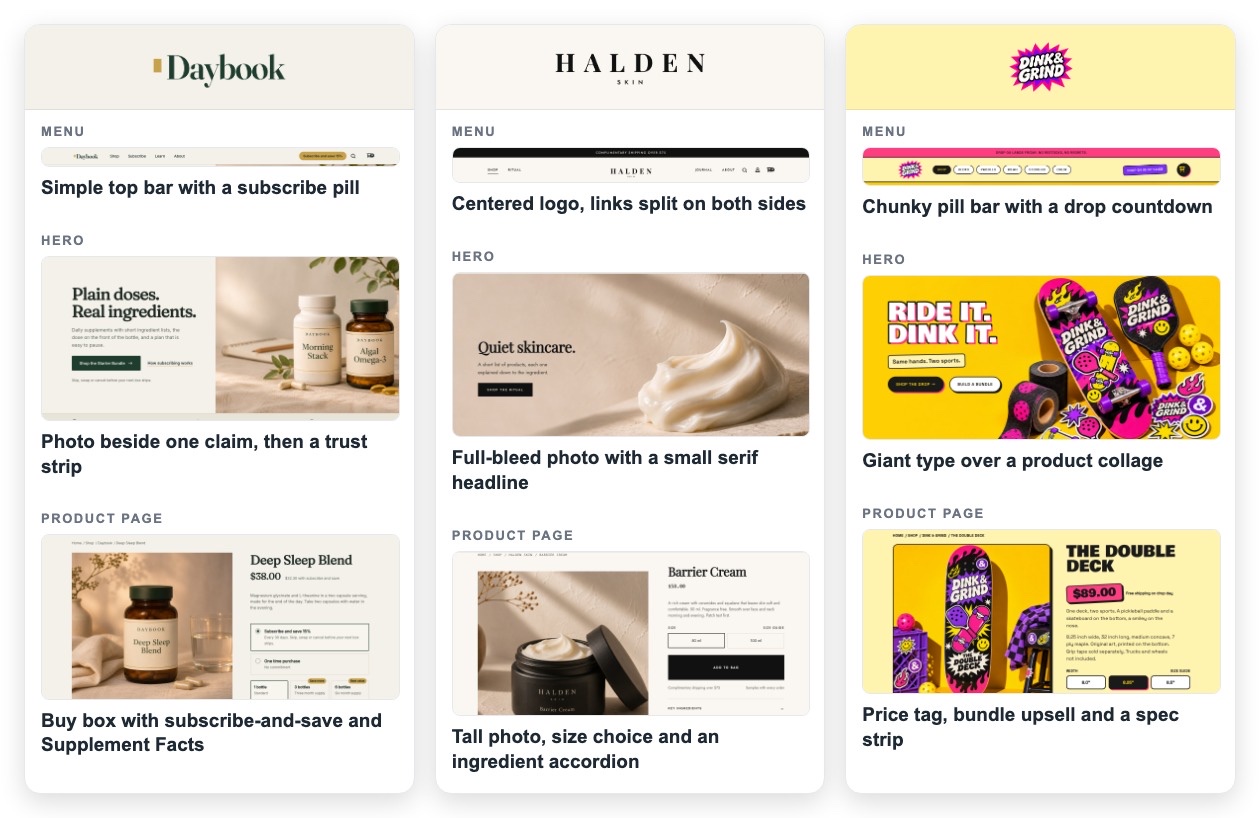
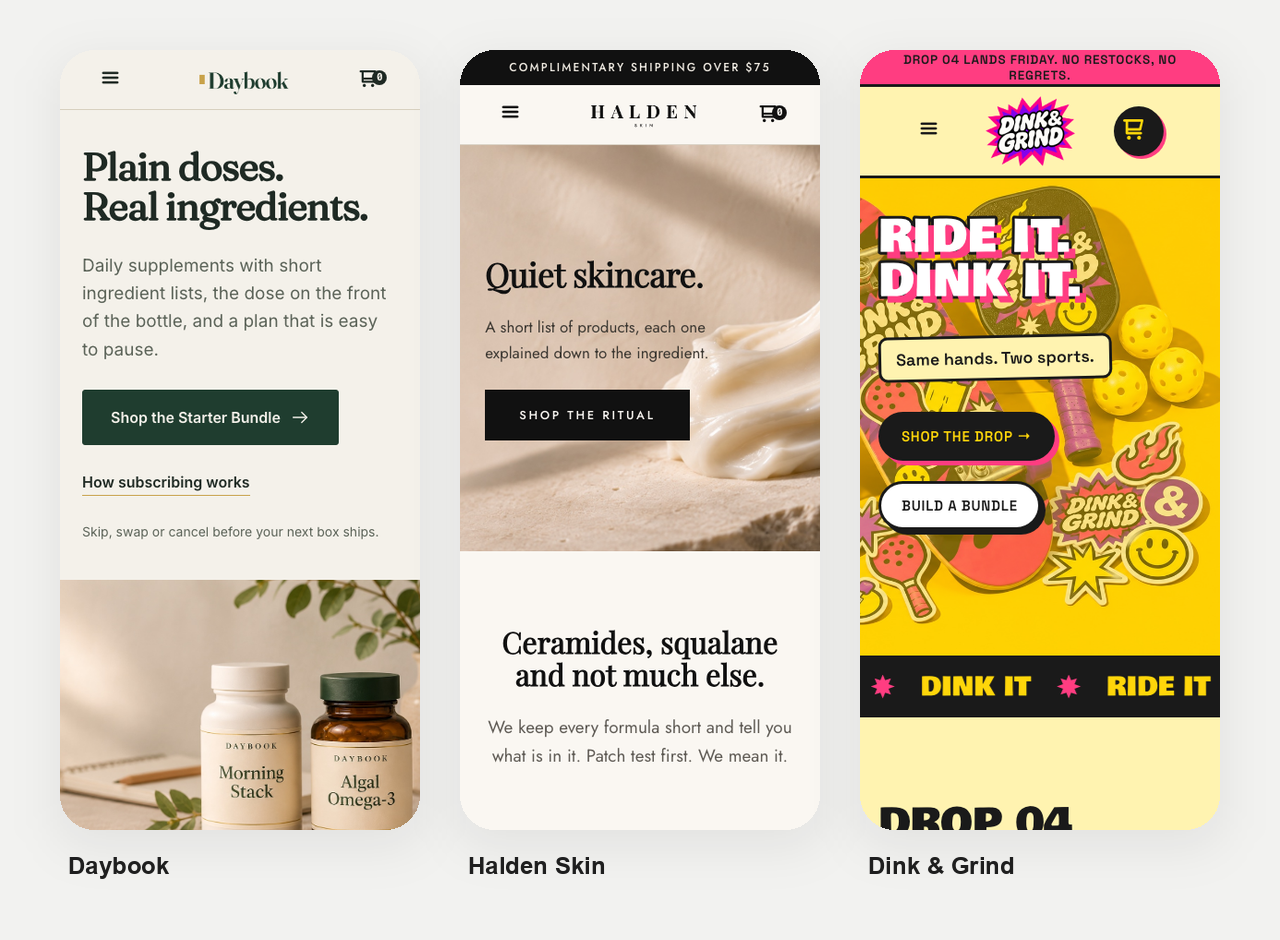
The theme underneath is the same free one. Each store has its own menu, hero and product layout, which was the point. Here is how the three differ where shoppers look first:
How a comp becomes a store
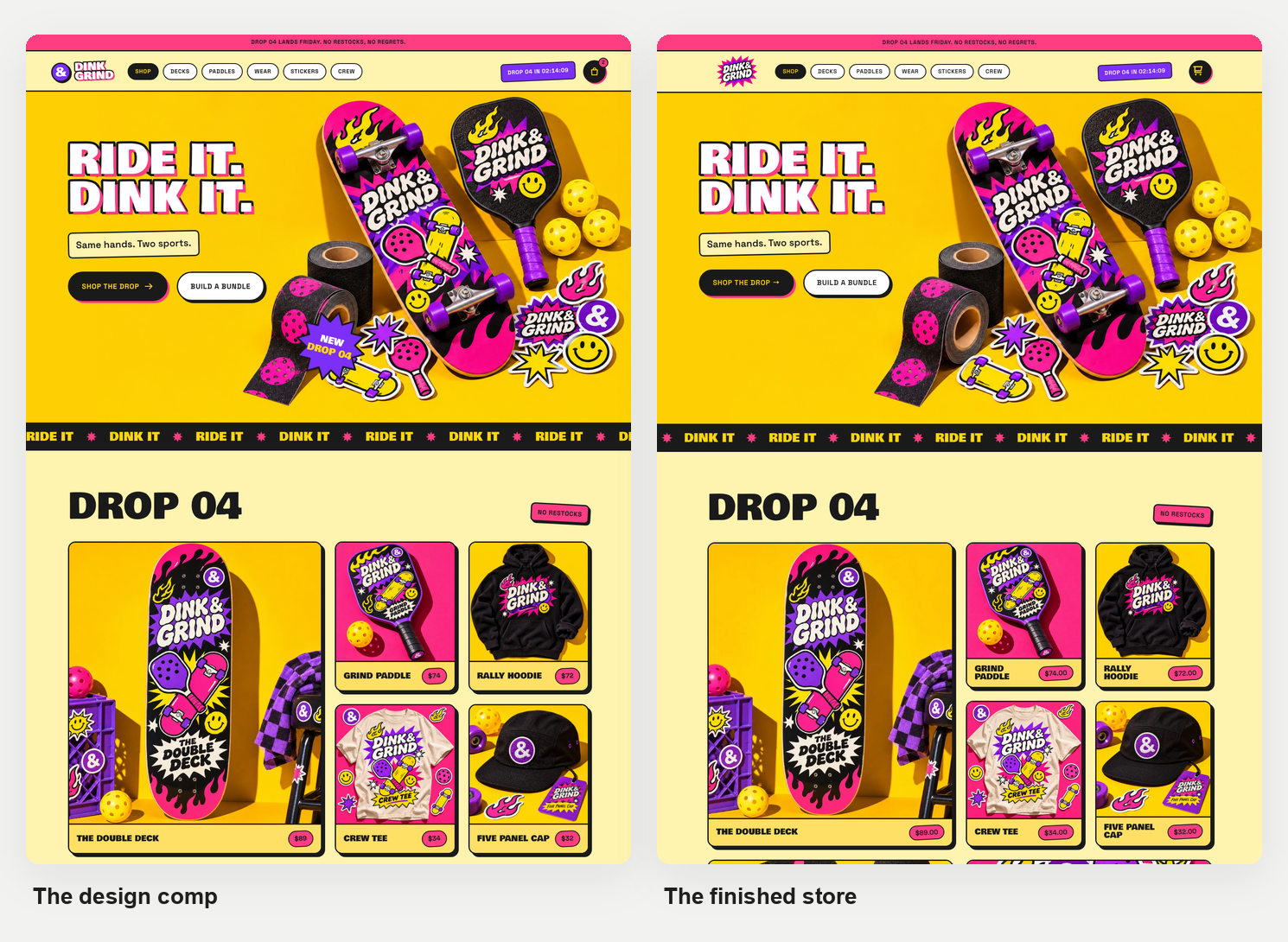
The method is the same for all three. You give an AI coding agent such as Claude Code the comp, the brand notes and one prompt, and it works through the store in order:
- Colors and fonts: one command applies the whole palette to the theme.
- Header and menu: logo, links and cart, matched to the comp.
- Home page: hero, product grid and promotional bands.
- Product page: photo, price, options and related products.
- About page: story, photos and a closing call to action.
- Footer: logo, links and fine print.
The agent works through the StoreFront Agent Toolchain, a command line tool that reads and writes your storefront's files, previews changes and checks them before they are saved. It builds on a copy of the theme, so your live StoreFront keeps running. After each step the agent previews the result and compares it with the comp.
What a prompt looks like
The prompt is plain English. A short setup tells the agent which copy of the theme to work on, to preview every change and never to touch prices. Then each step is a sentence or two, and the comp does the rest. This is the header step from the Dink & Grind prompt:
A pink announcement bar, then a chunky bar with the logo on the left, pill links pointing at the shop, a purple "Drop 04" countdown tag and a round cart badge on the right.
Those guardrails in the setup matter as much as the design notes. They are what let you hand a store to an agent and stay comfortable with the result.
What the agent built
Each build took about fifteen minutes of working time: Dink & Grind took 15 minutes, Daybook about 12 and Halden about 17. A short polish pass afterward cleaned up the phone layouts.
Daybook, supplements
About 12 minutes of working time. The shelf pulls names, prices and the subscribe-and-save price from the catalog.
Halden Skin, skincare
About 17 minutes of working time. The Ritual Set band reads its price straight from the catalog.
Dink & Grind, skate and pickleball
15 minutes, with the home page taking five fix rounds against the comp. The big first tile is the Double Deck, in the order set on the catalog page.
The product grids and product pages pull names, photos and prices from the catalog instead of having them typed in, so the store stays in step with your products. The home page, header, footer and About page match their comps closely.
Skeleton, before and after
Here is what actually changed, one piece at a time. In each picture, the first tile is Skeleton as it installs, and the other three are the same theme after the agent finished.
Hero banners
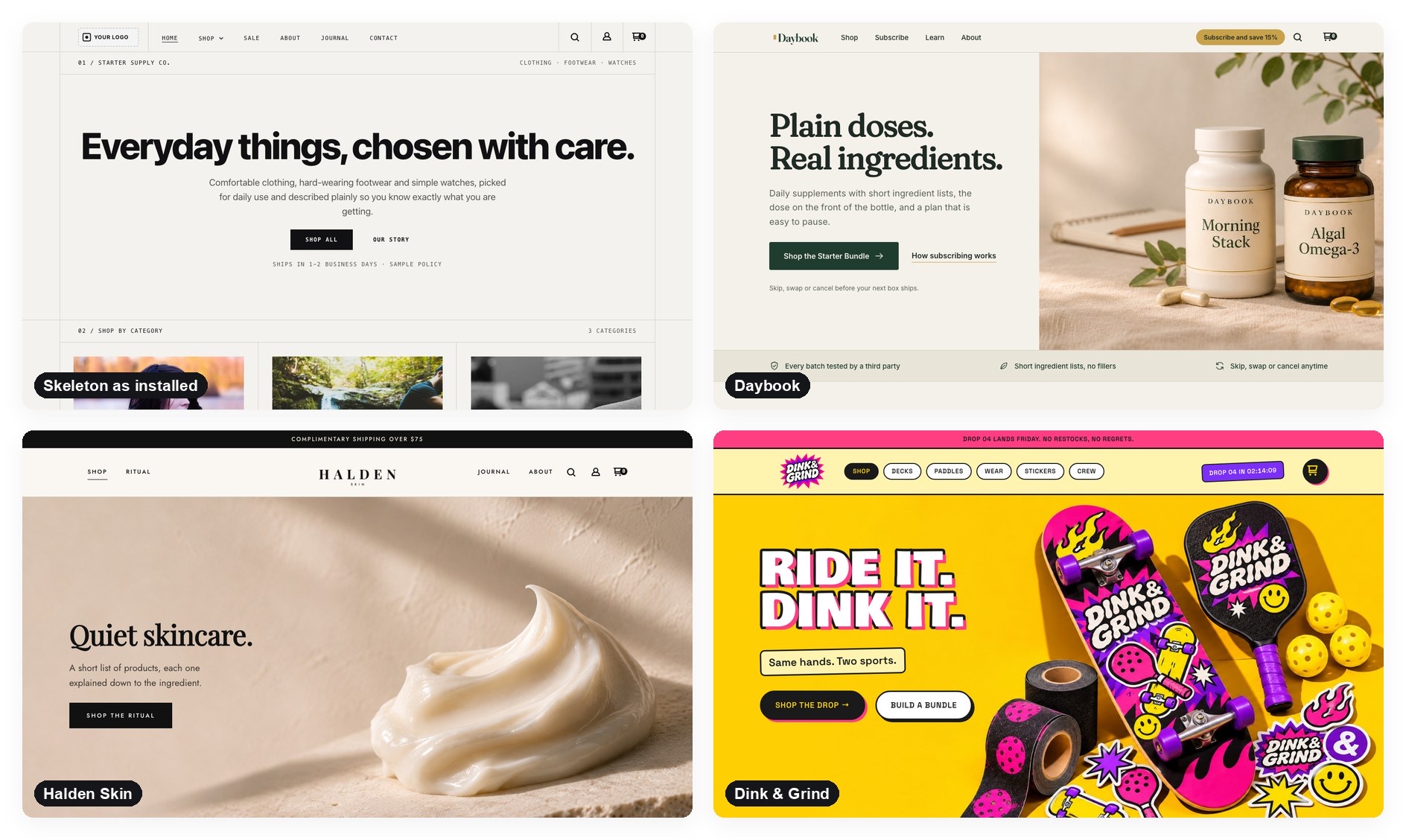
Skeleton starts with a centered headline and two buttons inside a framed grid. The agent replaced that one home page container three different ways: a photo beside a claim for Daybook, a full-width photo with a small serif headline for Halden Skin, and giant type over a product collage for Dink & Grind.
Product pages
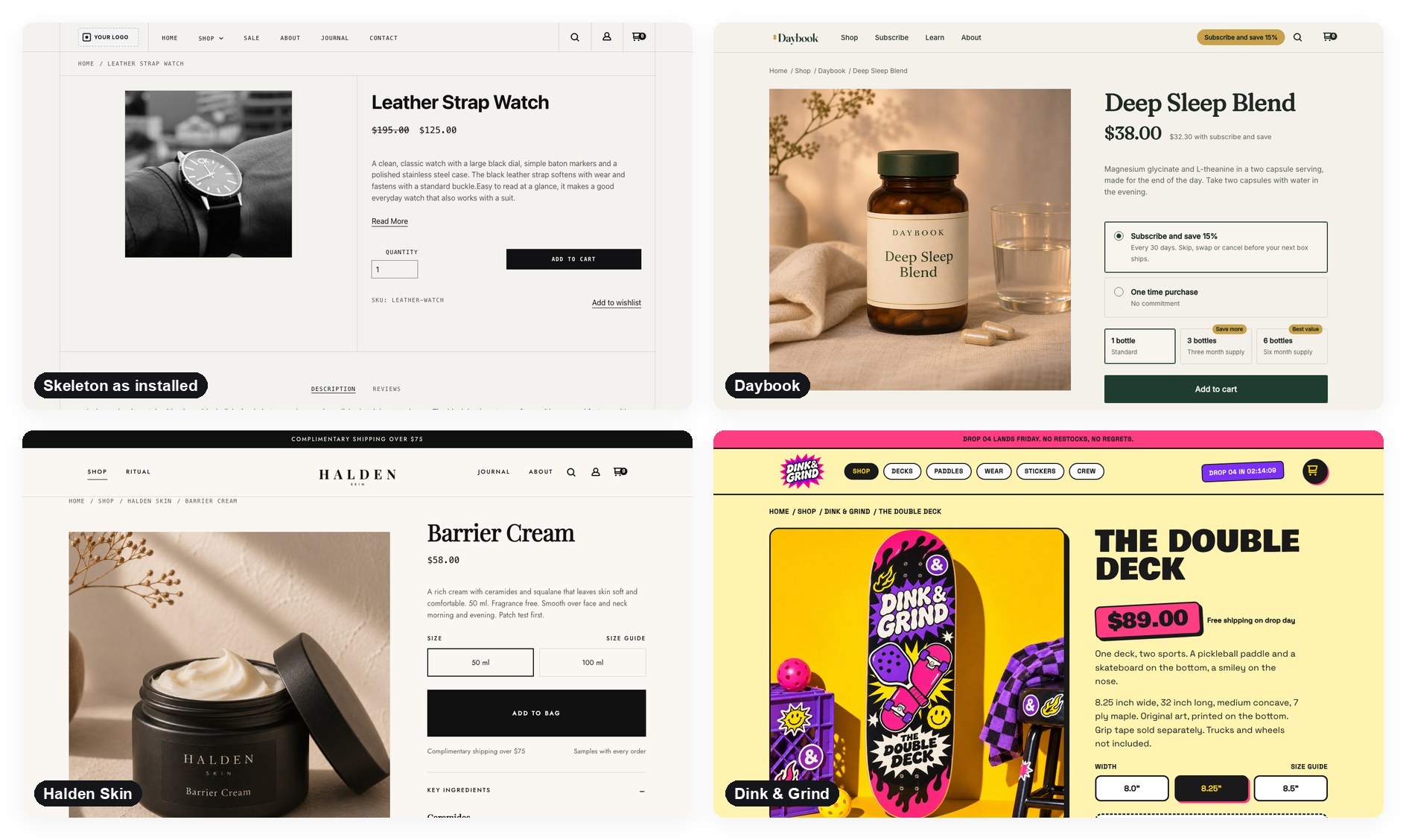
The stock product page is a clean two-column layout with a plain buy box. Each brand kept the product data coming from the catalog and rebuilt the layout around it: a subscribe-and-save box for Daybook, a tall photo with a size choice for Halden Skin, and a price tag with a bundle add-on for Dink & Grind.
The cart
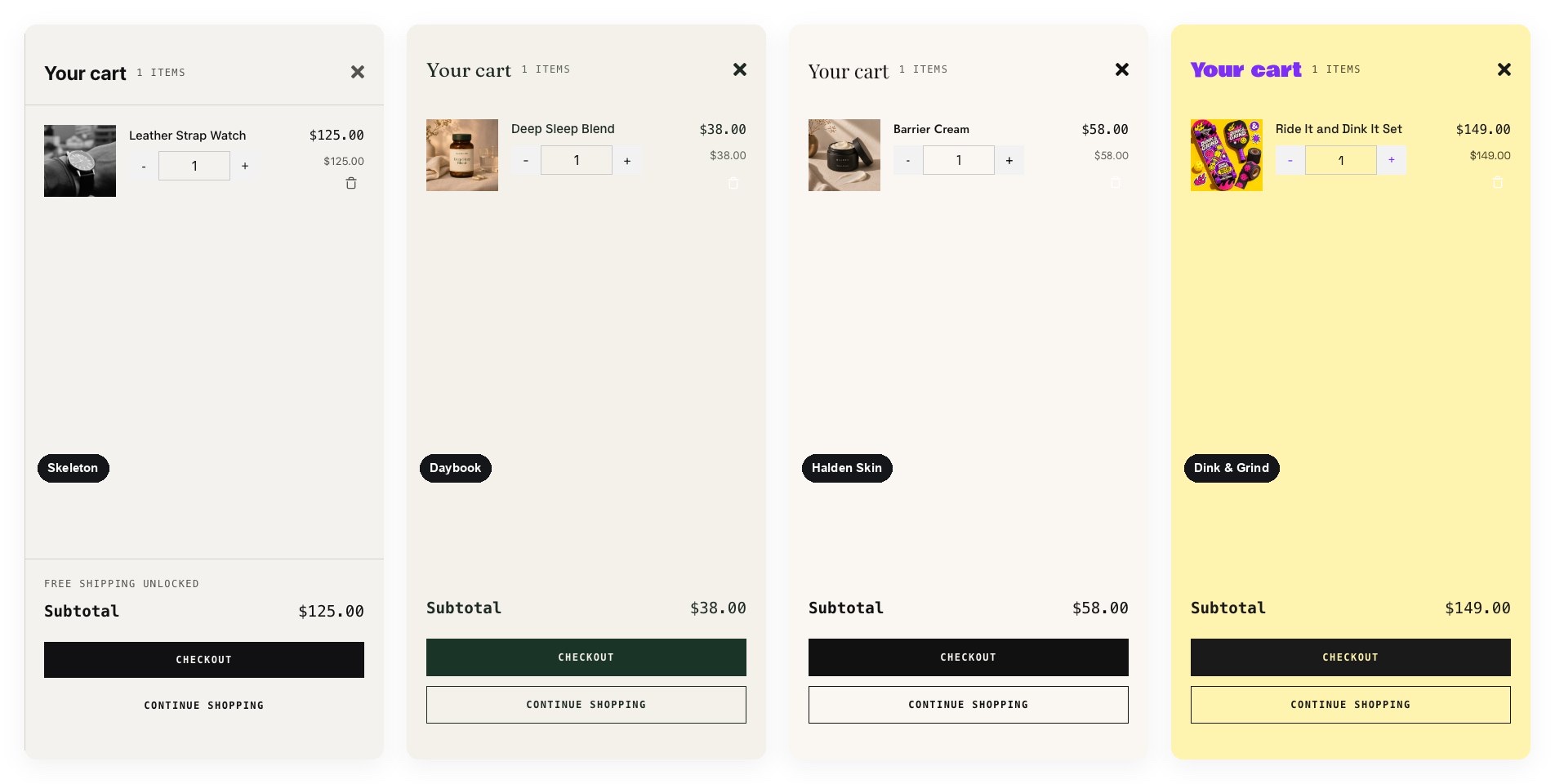
The slide-out cart keeps Skeleton's layout and takes on each brand through the theme settings: the drawer color, the heading font, and the checkout button all follow the palette.
Type and color
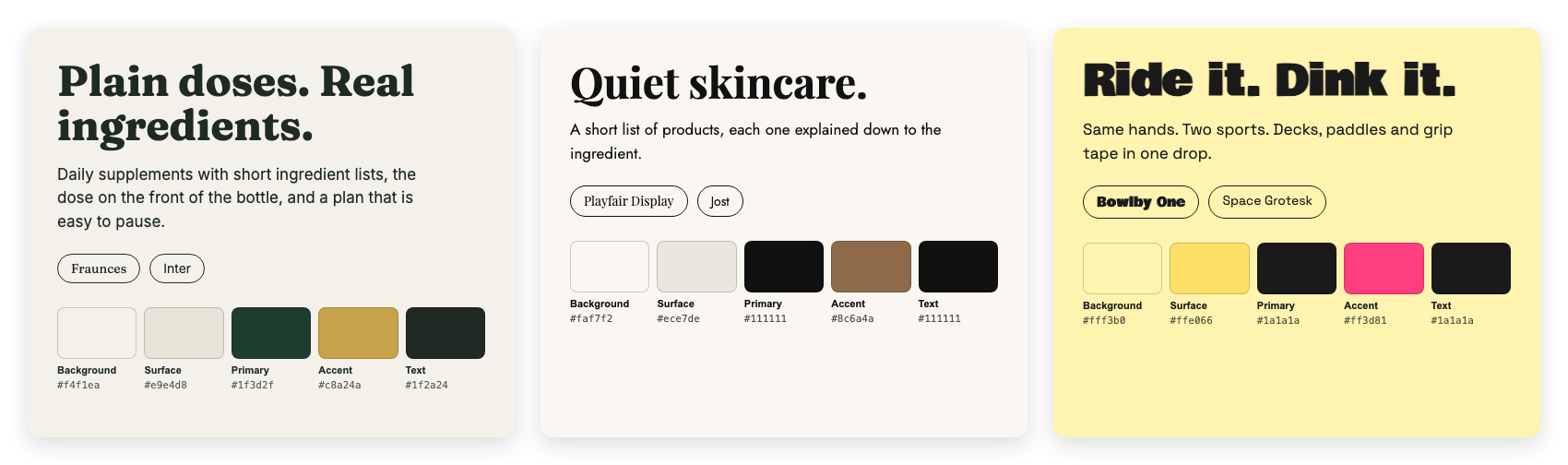
Skeleton names its colors by role (background, surface, primary, accent, text and more) and gives fonts their own slots, so a whole brand goes in with one set of values. Each store here got its palette and type pair that way, and every page that reads those roles followed, from the header to the cart.
Why Skeleton is a good base
- Named colors and font slots: one palette restyles the whole store, including the cart.
- Plain template files: the header, home page, product page and footer are separate files an agent can pull, change and preview before anything goes live.
- Parts you do not have to build: the slide-out cart, checkout, My Account and email templates are already there, so you only restyle them.
- A catalog-driven product grid: names, photos and prices come from your items, so a new layout stays in step with your products.
What is real, what is visual
A few things on these demo stores are styled blocks that are not tied to product data yet: the size chips, the subscribe toggle and bottle picker on the supplement store, and its Supplement Facts table. Everything else described above is working theme code you can edit.
The point is the method: a comp and a prompt in, a branded store out, with the rough edges listed.
Try it on your store
You need an UltraCart account, the free Skeleton theme applied to a StoreFront, and the StoreFront Agent Toolchain, which is free to use in public beta: install it from npm and connect your store. Start on a copy of the theme or a test StoreFront, paste in your comp, and ask for one section at a time. The comps and prompts we used are good starting points to adapt to your own brand.
If you also want an AI assistant to answer questions about your orders and catalog, see how to connect your AI assistant to the UltraCart MCP server. Prefer to work by hand? Every change the agent makes can also be made in the Visual Builder.
Theme customization FAQ
Can AI customize an ecommerce theme?
Yes, when the theme is made of files an agent can edit. With UltraCart's Skeleton theme and the StoreFront Agent Toolchain, an AI coding agent changed colors, fonts, menus, home page sections, product pages and footers from a design comp and one prompt.
Do I need to write code?
No. You describe what you want and review the previews. The agent edits the theme files, and you can still adjust anything in the Visual Builder afterward. The UltraCart documentation covers each part of a StoreFront in detail.
Will it change my live store?
Changes are previewed before they go live, and the agent can build on a copy of the theme, so your live StoreFront keeps running. Item content, menus and site settings are shared by every theme and go live as soon as they are written, so start on a test storefront. Risky changes, such as deleting content or changing prices, need your approval in the UltraCart admin with your authenticator.
Which AI agents work with it?
Claude Code, Codex, Google Antigravity, Cursor, GitHub Copilot, OpenCode, and any agent that can run commands in a terminal.
Is the Skeleton theme free?
Yes. You still need an UltraCart account, and the theme page offers a 30 day free trial with no credit card required.
Can I start from my own design?
Yes. Give the agent a screenshot or mockup of the pages you want, along with your brand notes, and ask for one section at a time.
Ready to try it on your own brand? Get the beta of the StoreFront Agent Toolchain, connect your store and give your agent its first comp.