

Black Friday promotions come together faster when every tool behind them already works together. In UltraCart, coupons, sale prices, upsells, scheduled emails, text messages, experiments, and reports are all built into the same account, so the code you create today is the code your emails send, your cart recovery applies, and your reports count. Here is how each tool hands off to the next:
- Plan and build Coupons, free shipping, sale prices, gifts, and upsells, each with its own start and end.
- Launch Scheduled emails and texts, a test to find the stronger message, and a flow for abandoned carts.
- Track Coupon, sales, upsell, and campaign reports in the same account as the offers they measure.
- Act Extend a winning offer, switch off a weak upsell, and follow up with everyone who bought.
At the end, a bonus tip: how to brief your AI support agent for the holidays, so a shopper's 2 AM question on Cyber Monday gets a reply. For inventory, campaign planning, and shipping cutoffs, start with our ecommerce holiday readiness checklist.
Set promotion times in Eastern
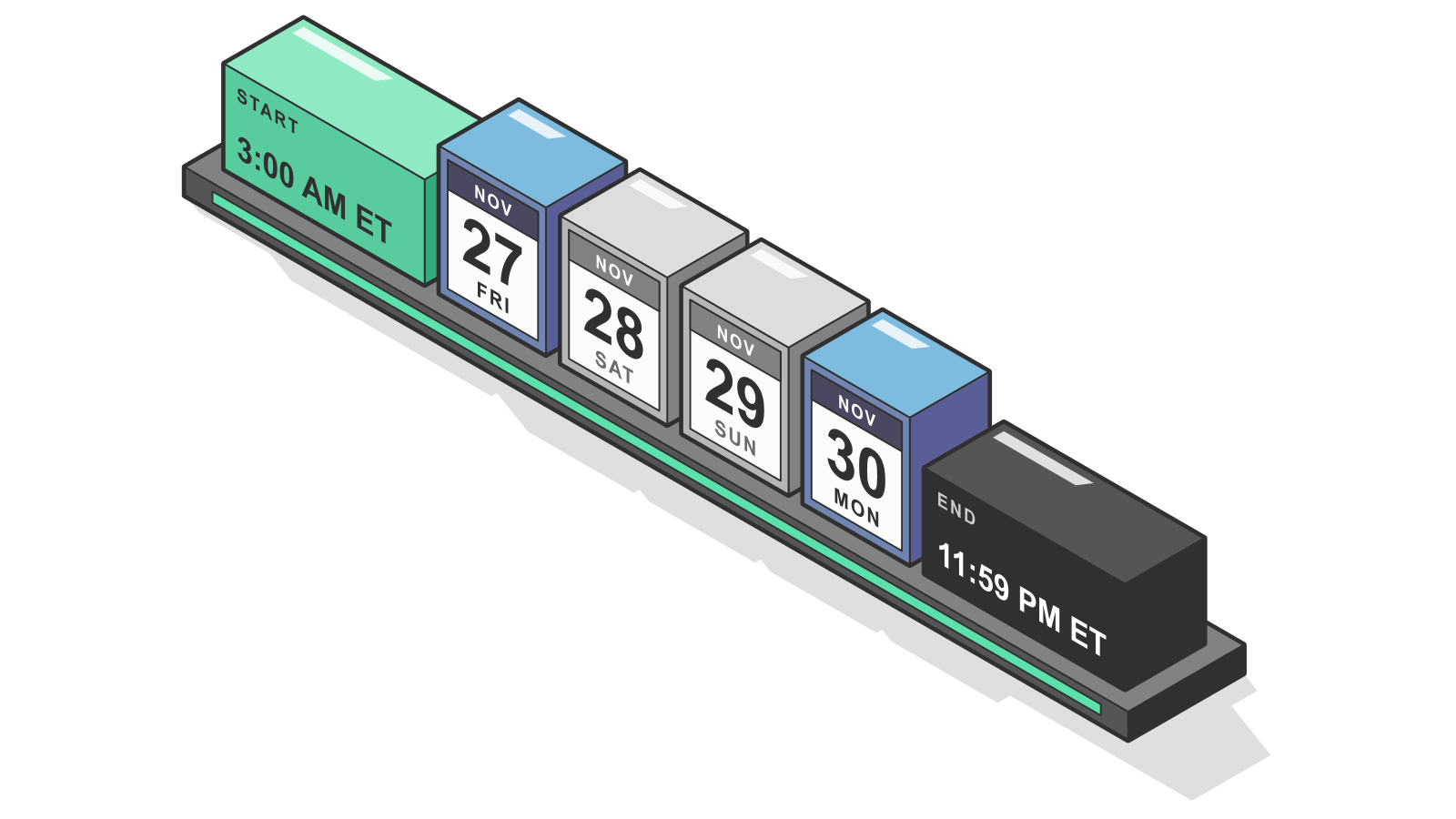
Planning starts with the clock. UltraCart runs on US Eastern time. Times in the admin, including order timestamps and reports, are Eastern, and the campaign scheduler shows Eastern too. Daylight saving time ends on November 1, so Black Friday week runs on Eastern Standard Time (UTC-5). See UltraCart's time zone notes for details.
A sale that starts "at midnight Pacific" on Black Friday starts at 3:00 AM Eastern, and that is the time you enter. Before you touch a setting, write down each start and end in Eastern:
- Black Friday Friday, November 27, 2026.
- Cyber Monday Monday, November 30, 2026.
Build your Black Friday coupons
Black Friday coupon codes are the most flexible offer you can run, because the coupon type decides exactly what gets discounted. Create one under Main Menu → Configuration (Checkout section) → Coupons, select New, and pick a type. These fit most holiday sales:
- Storewide percent off Percentage off subtotal takes a set percentage off the whole cart.
- Spend more, save more Tiered percent off subtotal and Tiered dollar off subtotal give a bigger discount at each spending level you set.
- Everything except clearance The Percent off item(s) types can skip any item carrying a tag you enter in Excluded Item Tags. Subtotal coupons cannot skip items.
- Free shipping over a minimum Free shipping method with subtotal, covered in the next section.
Three fields decide whether the coupon behaves on the day. Expiration accepts a date or a date and time, so enter the exact Eastern end time. Usable By limits who can redeem it: anyone, each person once by ship-to address, new customers once by email address, or only people holding a unique code from an email campaign. Valid with Other Coupons set to No stops a shopper from stacking it with another code.
Codes are not case sensitive, so BLACKFRIDAY and blackfriday are the same code. Create each code once. If you want the discount to apply with no code at all, Auto Apply coupons add one when the cart reaches a minimum subtotal or contains a specific item. Shoppers see the discount, but not a coupon line.
The coupons you build here are the same ones your text messages, your cart recovery flow, and your coupon reports use later, so there is one set of codes to manage.
Set a free shipping threshold
A free shipping threshold gives shoppers a reason to add one more item. There are two ways to set one.
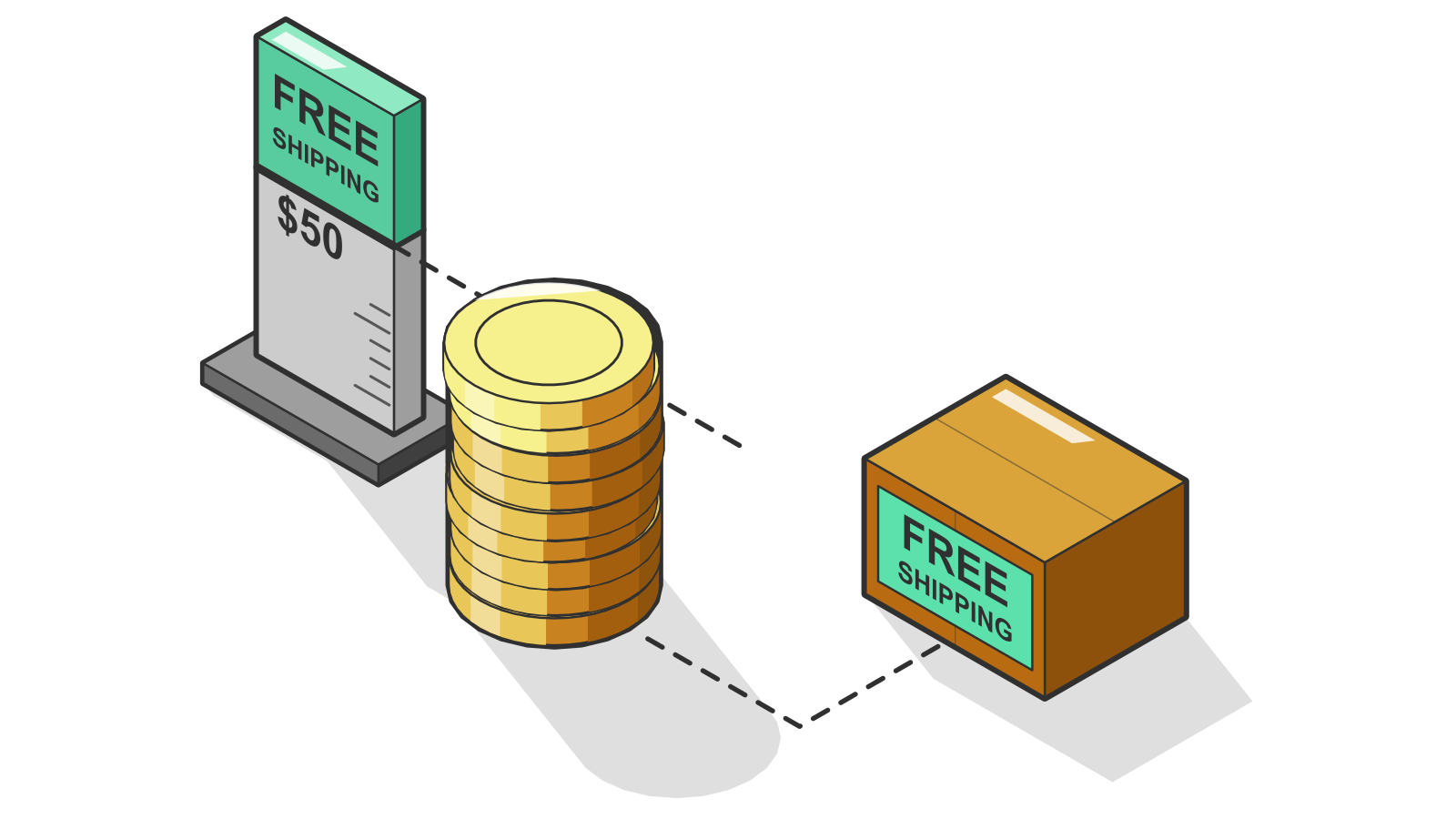
On the shipping method. Go to Main Menu → Configuration → Checkout → Shipping → Methods, edit a method, and on its Cost tab under Free Shipping, set Free shipping if order subtotal to your amount. A version of the rule also requires shipment to the continental United States, which keeps Alaska and Hawaii orders out of it. Use one rule per method: free ground over $50 and free two-day over $150 means one rule on each method.
As a coupon. When free shipping is only for the holiday weekend, use the Free shipping method with subtotal coupon type. It has its own Expiration, so it ends at the time you set.
For oversized items that should never ship free, open the item's Shipping tab and tick No Shipping Discount, with its Free Shipping box clear. The free shipping setup guide covers every option.
Schedule sale prices and gifts
A coupon applies the same discount to everything it covers. When each product needs its own holiday price, use item sale pricing instead. Three fields control it: Sale Cost, the price charged during the sale; Sale Start; and Sale End, when the regular price returns.
Set them in the Item Editor, or for many items at once with Batch Item Import. Enter dates as MM/DD/YYYY, check Only update existing items, and include every child item if the products use variations.
For a gift with purchase, Free Promotional Item (under Configuration, Checkout section) adds a free item when an order reaches a subtotal or contains a required item. Each row has optional Start Date and End Date columns. Both dates are inclusive and run on Eastern time, so an end date of 11/30/2026 keeps the gift running through all of Cyber Monday.
Add a Black Friday upsell
Holiday shoppers arrive ready to buy. Build offers under StoreFronts → [your storefront] → Content → Upsells. Each offer has its own Start Date and End Date, so a holiday-only offer can run alongside your everyday ones.
- Pre-checkout A modal before checkout, while purchase intent is highest. See how pre-checkout upsells work.
- Post-checkout Shown after payment details are submitted, so the offer cannot cost you the original order. Our one-click post-purchase upsell guide walks through it.
- Holiday pricing An offer can ship the upsell item free or use a lower Arbitrary Unit Cost.
Trigger offers by product tag rather than item ID, so a new holiday SKU joins the offer as soon as it carries the tag. These built-in upsell and revenue tools run inside your checkout, with no separate app.
Not sure which of two offers will land? Put them in an offer experiment. Traffic splits evenly between them, and when you have a winner, you promote it and only that offer remains. The upsells guide suggests running an offer experiment for at least one to two weeks, so start it now rather than on Black Friday morning.
Schedule emails and texts
With the offers built, the launch is about telling people. Set the send time on each campaign in When should we send out this campaign? The picker uses Eastern time in 5-minute steps, and the Campaign Calendar marks Black Friday and Cyber Monday so you can see the week at a glance. Our guide to scheduling email campaigns with the Campaign Calendar covers the setup.
A scheduled time alone sends nothing. Each email has to be approved by UltraCart and the campaign activated, so submit holiday emails early and look for the green Ready to send badge.
- Smart Email On by default, it skips anyone who received an email from you in the last 24 hours. Keep that in mind if you stack several sends on one day.
- Plan size A communications plan change can take up to 24 hours, so resize a day before a large send.
- Doorbusters A Rate Limiter step can keep releasing customers only while an item you name is in stock.
Test two versions of the launch email
Select Start Experiment from a Send Email step's three dots menu, and UltraCart copies the email as a second variant. With a limited test in a campaign, a share of your list gets the email first, and after a set time everyone else gets the winner. For landing pages, a StoreFront URL experiment splits visitors from one router URL you can use in your holiday ads. See A/B testing and experiments.
Add a text message
Campaigns and flows send texts too. Once Twilio credentials are set on the StoreFront under Communication → Settings, add a Send SMS step next to your emails. It can include one of your coupons or a single-use code per customer, applied to the cart when they follow the link.
Texts are for customers who opted in, so build the audience with the segment filter opted in to SMS messages. Replies continue in Conversations under SMS. More on SMS marketing and automation.
Recover abandoned holiday carts
Holiday traffic means more carts left behind, and built-in marketing automation can follow up for you. Under Communications → Flows, select New Flow, choose From Library, and install the Abandon Cart Flow. It sends an email right away and a follow-up three days later.
Proactive Email Collection must be on for the checkout's email field, or UltraCart never learns who abandoned the cart. To include a discount, add a Setup / Modify Cart step with Generate Unique Coupon and set how many days the code stays valid. A shared code that leaks can be used by anyone; a unique code works once.
For more on the flow itself, read how the abandoned cart flow recovers sales.
Test before the weekend
Every promotion should pass a real checkout before Black Friday, not during it:
- Codes: in a private browser window, add a product, apply each code, and confirm the discount and totals before payment.
- Auto Apply rules: confirm the discount appears only when it should. A very low minimum subtotal applies the coupon to nearly every order.
- Upsells: turn on Test Orders Only and place a test order with the test credit card. Then clear it and confirm the offer is Active, or shoppers will never see it.
- Emails: check that every holiday campaign shows Ready to send.
- AI support: ask your AI agent a holiday shipping question and check the answer against your policy. The bonus tip below shows how to prepare it.
Track Black Friday results
Once the sale is live, the reports sit in the same account as the offers, tied to the codes, offers, and campaigns you built. Here is where to look in UltraCart's ecommerce analytics:
- Each coupon Open the Usage Report from a coupon's three dots menu for every use, with the code, order ID, date, and subtotal. You can download it too.
- All coupons at once Under Operations → Reporting → Financial → Coupon Usage, pick a date range for a summary tab plus a tab for each coupon.
- Sales overview Current Period Sales shows total revenue, number of orders, and average order value, plus item statistics and how often each coupon was applied.
- Upsell offers On the Upsells screen, enter a start and end date and select View for each offer's views, conversion percentage, revenue, and declines.
- Email campaigns Each campaign shows emails sent, opened, clicked, and converted, with revenue. Turn on Show Step Analytics to see each step.
- Site experiments Under Content → Experiments, each variation shows sessions, add to carts, orders, conversion rate, and revenue.
Adjust offers during the sale
The reports tell you what is working, and the fix happens in the same screens you used to build the offer:
- Extend a winner Edit the coupon and move its Expiration later, or earlier to end a weak offer. It is checked at checkout, so a shared code you already sent follows the new date. Leave the code itself alone: changing it stops issued codes from working.
- Pause the automatic discount Removing an Auto Apply rule stops the automatic discount and keeps the coupon, so shoppers can still enter the code.
- Switch off an upsell Each offer has an active toggle, so a slow one can stop while the rest keep running.
- Keep the winning email Declare Winner on an email experiment turns it back into a single email with the version you chose.
- Follow up with buyers Build a segment of customers who Placed order and send them a follow-up campaign after the weekend.
Bonus: brief your AI support agent
Cyber Monday does not keep business hours. Shoppers ask where an order is, how holiday returns work, and when the sale ends, long after your team has logged off. UltraCart AI Agents for customer support answer webchat, SMS, and phone conversations, draft support ticket replies for your team to review, and pick up conversations from your queue on their own.
Those holiday questions are their specialty: AI Agents are best suited to post-order support, such as order status, tracking, and policy and product answers from your own knowledge base. A user can provide live support during business hours and switch to AI after hours. Each agent handles up to 10 conversations at once, and a typical short conversation costs a fraction of a cent.
A few minutes of holiday context gets an agent ready:
- Write a holiday policy document: one short PDF or text file with clear headings for holiday shipping cutoffs and your holiday returns window. Upload it in the agent's Knowledge Base section under CRM → Workforce → AI Agents, once for each agent, since each has its own.
- Put the sale terms in the instructions: add the offer, code, and exact Eastern end time to the chat and SMS instructions. The knowledge base guide advises against uploading short-lived promotions.
- Say when your team is back: give the agent your holiday hours, and turn on Open support ticket so a request that needs a person waits for your team.
- Turn on order lookups: enable Order - Lookup information for real status and tracking, and Grant access to storefront and item data for product questions.
- Raise the daily budget cap: agents stop taking new conversations once a cap is reached, and the docs recommend raising caps ahead of promotions. It is under CRM → Workforce → Settings → AI Budgets.
- Edit it out after Cyber Monday: remove the sale terms from the instructions once the sale ends.
Instruction fields take plain text, so UltraCart's examples use numbered, labeled lines. Here is a holiday block in that style for the chat instructions. Replace the bracketed parts:
HOLIDAY CONTEXT (remove after [end date])

1. SALE: [Offer] runs until [11:59 PM Eastern, Monday, November 30]. Code: [CODE]. One code per order.

2. POLICIES: For holiday shipping cutoffs and returns, always check the knowledge base first and summarize the answer in one or two sentences.

3. ORDERS: If a customer asks about an order, ask for the order ID or email address and look it up before answering.

4. AFTER HOURS: Our team is back [day and time, Eastern]. If a request needs a person, open a support ticket and tell the customer when to expect a reply.

5. LIMITS: Do not promise discounts, delivery dates, or exceptions that are not in the knowledge base or these instructions.
In the morning, every AI-handled conversation is in the Conversation Archive with sentiment tags, and you can take over an active conversation at any point. New to AI Agents? The AI Agents guide covers setup.
Black Friday promotions FAQ
What time zone does UltraCart use for promotion times?
UltraCart uses US Eastern time across the admin, including coupon expirations, reports, and scheduled campaigns. Daylight saving time ends November 1, so Black Friday week runs on Eastern Standard Time (UTC-5). Convert any Pacific or Central start times before you enter them.
Can I offer free shipping only during Black Friday weekend?
Yes. Create a coupon with the Free shipping method with subtotal type and set its Expiration to the date and time the offer ends.
How do I give a holiday discount without a coupon code?
Use an Auto Apply rule on the Coupons screen. It applies a coupon automatically when the cart reaches a minimum subtotal or contains a specific item. Shoppers see the discount but not a coupon line, and tiered subtotal coupons are the recommended types for it.
How do I stop shoppers from stacking holiday coupons?
Set Valid with Other Coupons to No on each coupon that should stand alone. A coupon set to Super overrides that setting and always applies, so use Super only on purpose.
Can I text my Black Friday offer to customers?
Yes. Once Twilio credentials are set on the StoreFront under Communication, Settings, add a Send SMS step to a campaign or flow. Send it to customers who opted in to SMS. The step can include a coupon code or a single-use code per customer.
Can an AI agent answer support questions overnight on Cyber Monday?
Yes. UltraCart AI Agents pick up webchat, SMS, and phone conversations from your queue and draft ticket replies for your team to review. Give the agent a holiday policy document and your sale terms, turn on Open support ticket, and raise the daily budget cap before the weekend.
Coupons, upsells, emails, texts, experiments, reports, and AI support all live in one account, which is why one guide can cover the whole sale. Build your offers this week, test every one, and compare UltraCart plans to see what comes built in.