

The dropdown problem
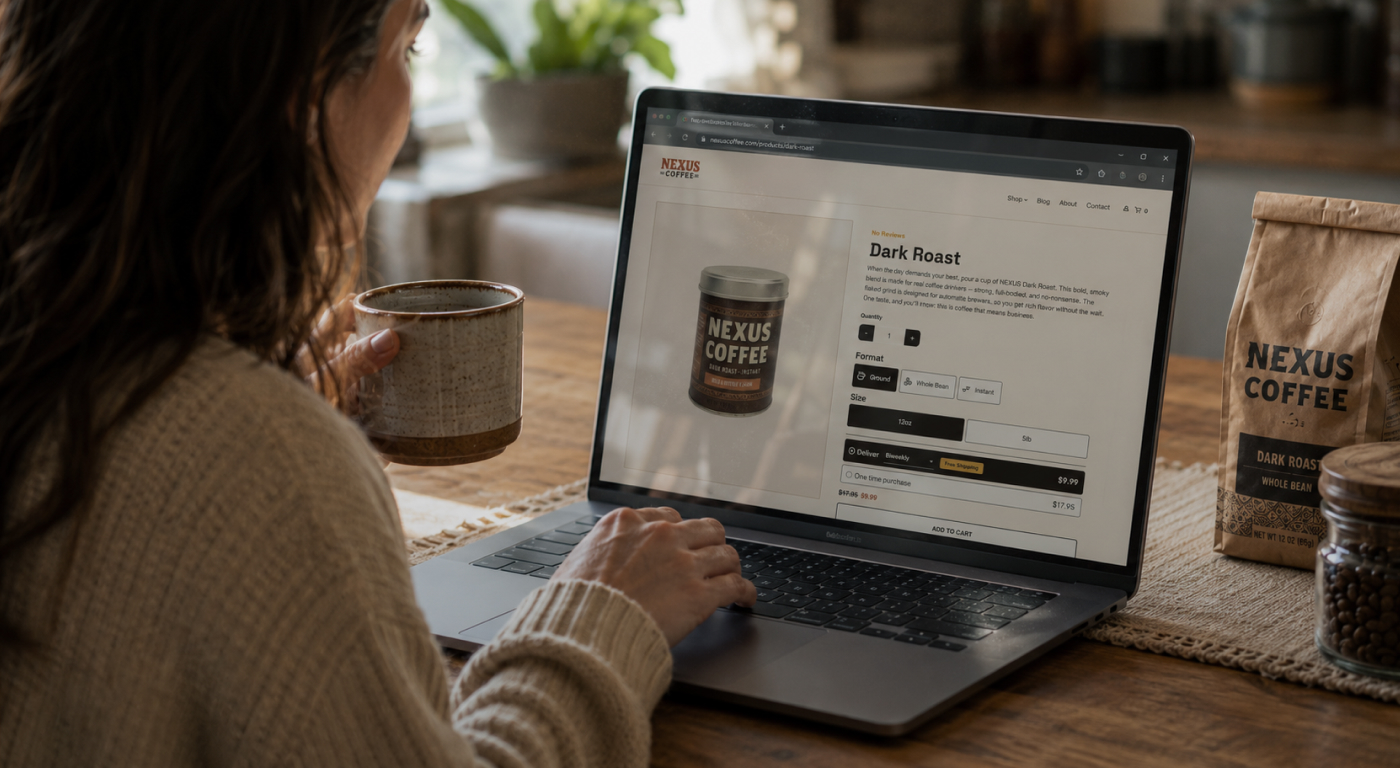
When a product has variations, the default pattern is a dropdown: one "Please select…" menu per variation. It works, but it buries your price and your best offer inside a select box the shopper has to open before they can compare anything.
A product variation picker fixes that. Instead of a hidden menu, each variation becomes a row of buttons, cards, or variation swatches the shopper can see and click at a glance. Studies of online stores consistently find that swapping dropdowns for visual swatches and buttons lifts add-to-cart rates, largely because the choices are clearer and far easier to tap on a phone.
On UltraCart, you build that picker with the Item Offer element family in the StoreFront Visual Builder. It is built into the platform, so there is no swatch plugin to install, license, or keep compatible with your theme.
Meet the variation picker
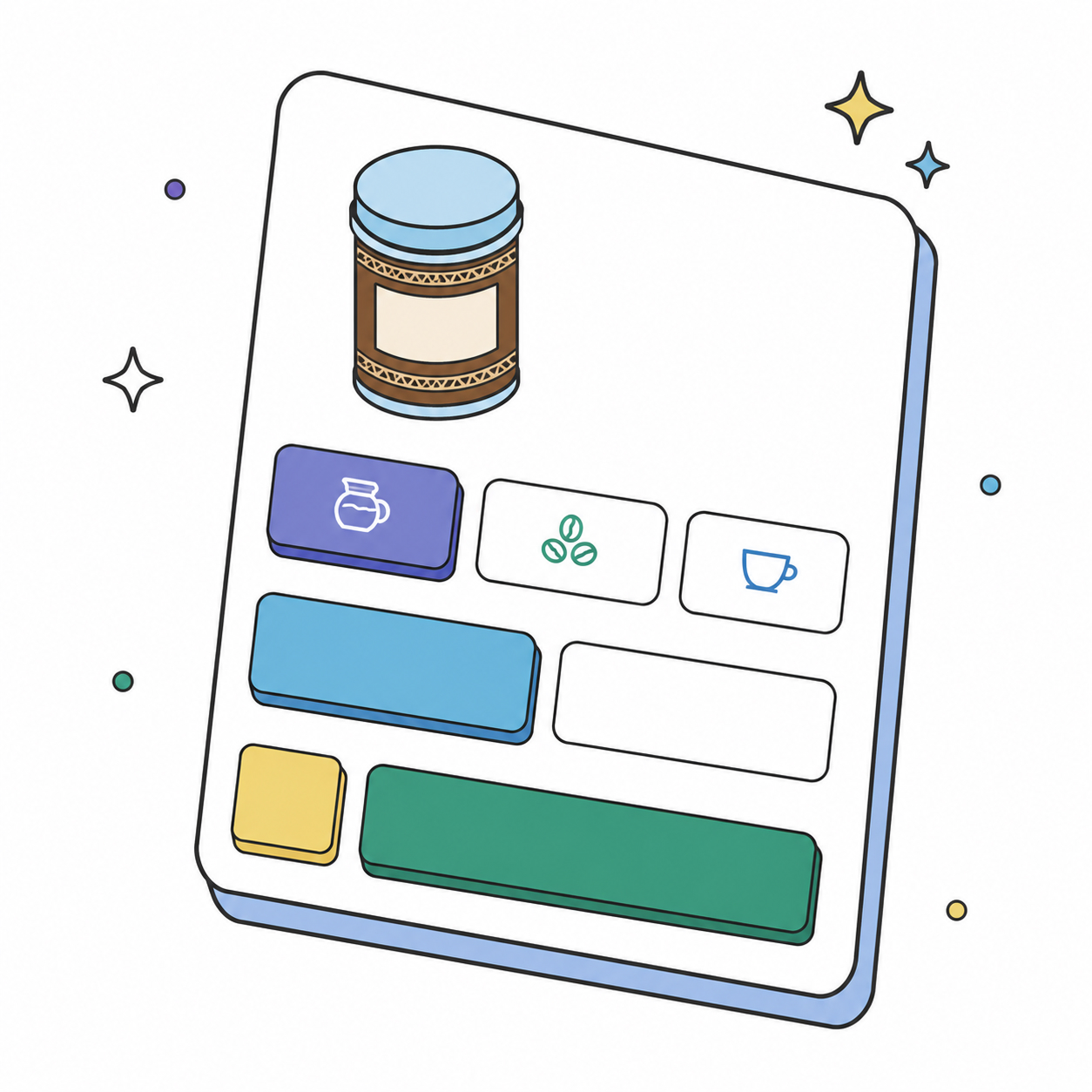
Item Offer replaces the plain dropdown with a fully merchant-styled picker. Each choice can carry its own icon, image, price, and savings callout, and the price you display is the real price of the resolved child item, recalculated every time the shopper changes a choice.
Picture a coffee product page: a Format picker (Ground, Whole Bean, Instant), a Size picker (12oz, 5lb), and a subscribe-versus-one-time choice, all with live pricing. Together that purchase module is what direct-to-consumer brands call a "buy box." You can layer in low-stock urgency, a "Most Popular" badge, and rules that reveal extra content when a particular option is chosen.
How Item Offer works
Item Offer is not a single widget you drop and configure. You assemble the picker from three kinds of parts, which makes it flexible enough to match almost any product page layout:
- Item Offer (the container): owns the shopper's selection for the whole picker, resolves the chosen values to one concrete child SKU, and feeds that into the add-to-cart form. It draws nothing on its own.
- Item Offer Axis: one choice dimension bound to a single variation, such as Size. It draws one cell per allowed value. An Item Offer Axis Name supplies the heading label.
- Slot widgets: the title, icon, price, and savings pieces placed inside an axis once. The axis clones them into every cell, and each clone resolves its own content for that cell's value.
The key idea: the axis loops, and the slots ride along. You style one cell's worth of widgets, and every value gets the same treatment with its own resolved data.
Before you build
Item Offer reads your item's real variation matrix, so the data has to exist on the item first. Before you place a single element, confirm you have:
- StoreFront administrator access: you need to be in the StoreFront Visual Builder to add elements.
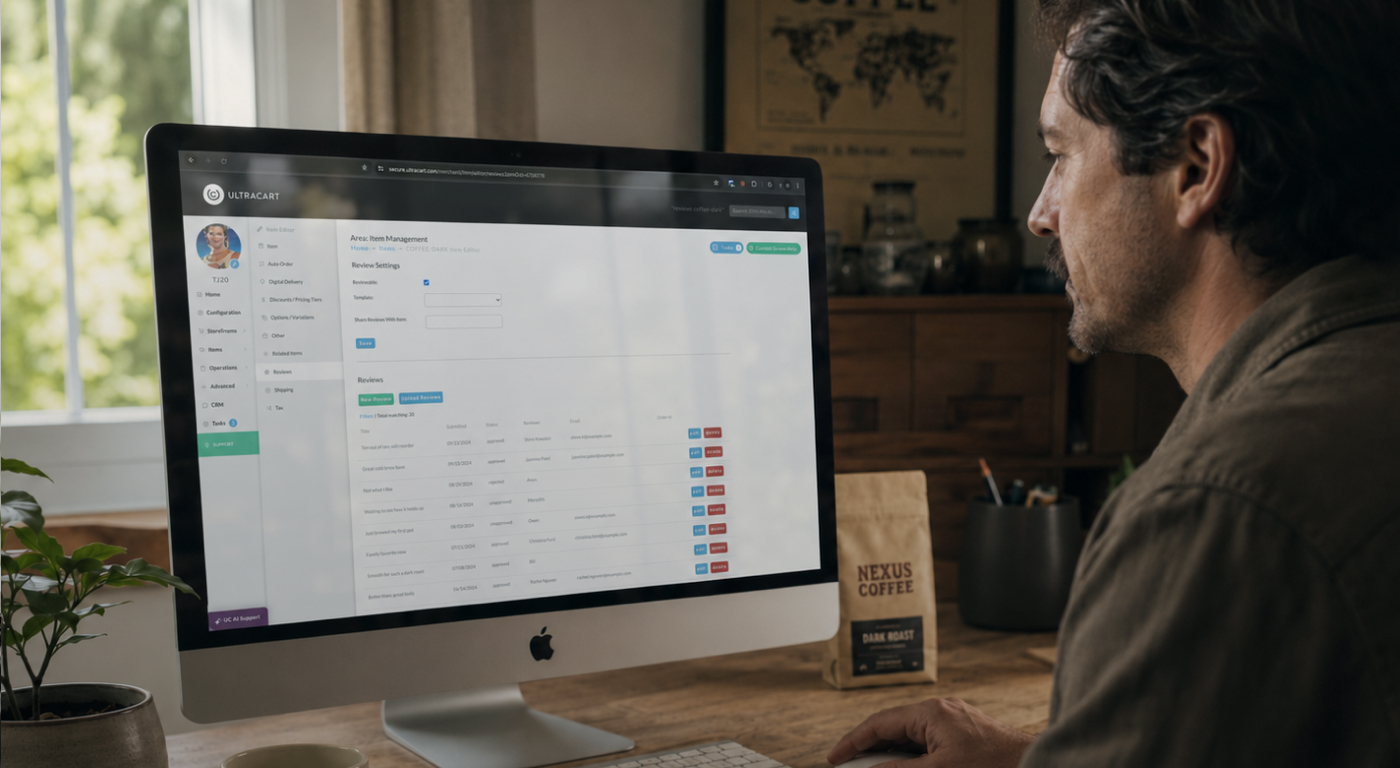
- Variations defined on the item: set these in the item editor under Items, then Options / Variations. Each variation (Format, Size) gets its values, and the Sort Order there is the order cells appear in the picker.
- Variation Item Assignments: the mapping that ties each combination of values to a specific child Item ID. This is how the picker resolves a selection to a real SKU and price.
One rule prevents the most common headache: when you bind an axis later, its Variation Name must match the variation name on the item exactly, including capitalization and spacing. For the underlying setup, see UltraCart's guide to building a variation picker with Item Offer.
Build the picker

Work one axis at a time: add it, get it rendering, then repeat for the next variation. Building the Format-and-Size picker takes four passes.
- Add the Item Offer container. Inside the item form on the product page, drop an Item Offer element where you want the picker to appear. It establishes the picker and the item context everything else reads from. It renders nothing visible yet, which is expected.
- Add an axis and its label. For each variation, add an Item Offer Axis Name (set its Variation Name, for example Format) and an Item Offer Axis. On the axis, set the Variation Name to match the item, then choose a Render Mode (Buttons, Radios, Pills, Cards, Dropdown, or Swatches) and a Layout (horizontal, vertical, or grid).
- Add the per-cell slot widgets. Inside the axis, add an Item Offer Title for the value label, an Item Offer Icon for a per-value glyph, and an Item Offer Price for the resolved variant's price. You add each once; the axis clones it into every cell.
- Repeat for the next variation. Run the same two steps for Size, and you have a working two-axis picker.
Style every cell
Back on the Item Offer Axis, the Cell Appearance group controls how selected and unselected cells look: background, border, and text color for each state, plus a bold option for the active cell. Turn on Show Sale Indicator to draw a small dot on any cell whose variant is discounted.
For details that belong to one value rather than the whole axis, open Edit Per-Value Configuration. There you can give a single value its own swatch color, an icon URL, a group heading, or a label override. Any value without an entry simply renders with the axis defaults, so you only customize the cells that need it.
To mark the active choice, add an Item Offer Selected Icon inside the axis. It places one indicator, a checkmark by default, on whichever cell is selected, and you can overlay it in a corner or sit it inline.
Add subscribe & save
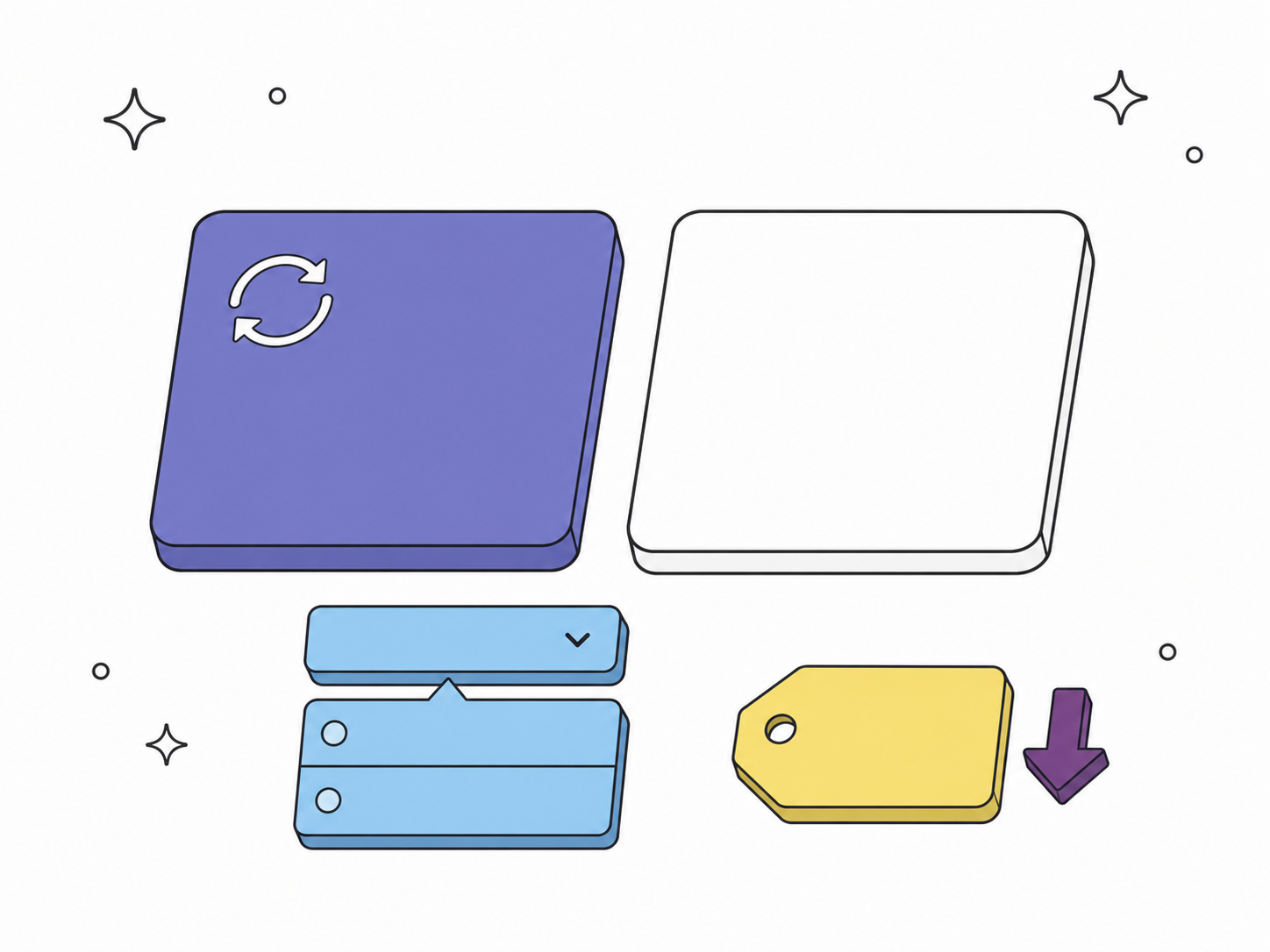
The same picker can offer subscribe-and-save, which pairs naturally with UltraCart's built-in subscription billing. Two elements work together:
- An Auto Order axis: an Item Offer Axis with its Axis Source set to Auto order. It renders a one-time-versus-subscribe choice as its own axis, with labels like "One time purchase" and "Subscribe."
- An Auto Order Schedule: a cadence picker (Biweekly, Every 4 Weeks, and so on) placed as a sibling of the axes. It reads the resolved item's auto-order configuration, shows the allowed frequencies, and hides itself when the variant is one-time only.
Because the cadence picker only appears for subscribe-eligible variants, shoppers never see an option that does not apply. That keeps the buy box honest, which matters for the kind of recurring revenue covered in our look at reducing subscription cancellations.
Why built in wins
On most platforms, a visual variant selector is a paid app: a swatch plugin, a "buy box" builder, sometimes a separate subscription widget, each with its own monthly fee and its own compatibility risk when you change themes. Item Offer is part of the StoreFront Visual Builder, so the picker, the live pricing, and the subscribe-and-save option are all native to the page.
That matters beyond cost. A built-in picker reads your real variation matrix and pricing directly, so there is no sync step and no second source of truth to keep aligned. It is the same advantage behind avoiding the hidden cost of plugin-based eCommerce: fewer moving parts, fewer things to break, one platform to manage.
Variation picker FAQ
What is a product variation picker?
It is the part of a product page where shoppers choose options like size, color, or format. A picker shows those options as visible buttons, cards, or swatches instead of a dropdown menu, with the price and any savings shown alongside each choice.
Do I need code to build one in UltraCart?
No. You assemble it from Item Offer elements in the StoreFront Visual Builder. The only prerequisites are variations and Variation Item Assignments defined on the item itself.
Why does the price recalculate on every click?
Each cell shows the price of the fully resolved variant given the other axes' current choices. Changing one axis can change the matching child SKU, so the prices re-hydrate across the picker. That behavior is expected, not a bug.
Can the picker handle subscriptions?
Yes. An Auto Order axis adds a subscribe-versus-one-time choice, and an Auto Order Schedule adds the delivery cadence. Both read the item's real auto-order settings and hide themselves for one-time-only variants.
Start building
If your product pages still hide pricing behind a dropdown, the variation picker is one of the highest-leverage upgrades you can make to the buy box. Open the StoreFront Visual Builder, add an Item Offer element to a product with variations, and build up one axis at a time. Want a hand with a more advanced layout? UltraCart's team can help you design a buy box that fits your catalog, all on a platform where the picker and its pricing are built into every plan.